
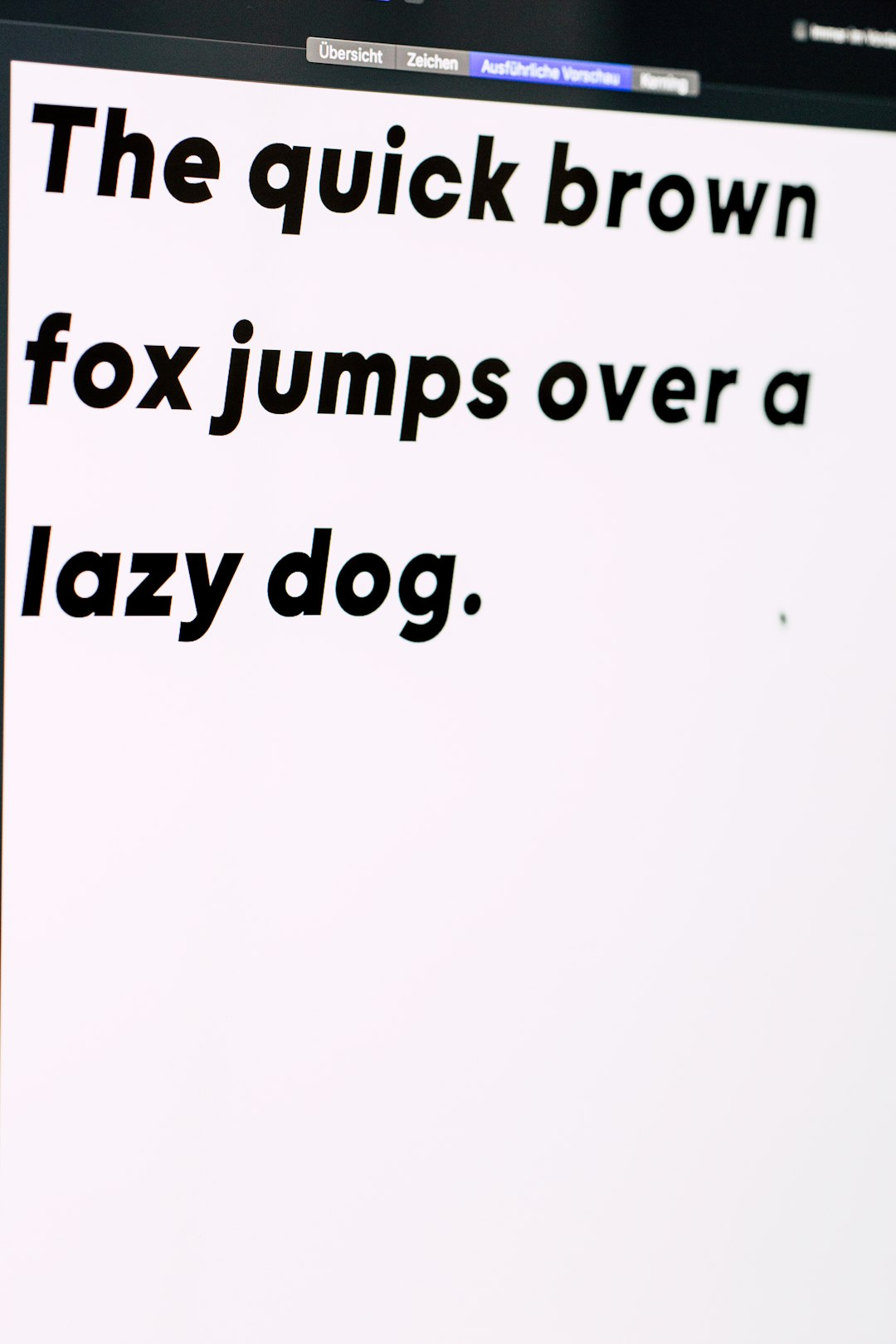
Fonts are like tiny actors in your PowerPoint show. They set the mood. They add personality. They make a slide feel bold, calm, fancy, silly, or serious. But when those fonts go missing, your deck can turn into a drama nobody asked for.
TLDR: Font embedding saves the fonts inside your PowerPoint file, so your slides look the same on other computers. It matters because missing fonts can break layouts, change spacing, and make your deck look messy. To avoid problems, use embeddable fonts, turn on font embedding, and test your file before sharing. When in doubt, use common fonts or export a PDF.
What Is PowerPoint Font Embedding?
Font embedding means PowerPoint packs the font data into your presentation file. Think of it like putting the font in the suitcase with your slides. When someone opens the file on another computer, PowerPoint can use that packed font.
Without embedding, PowerPoint looks for the font on the viewer’s computer. If it cannot find it, it swaps in another font. This is called font substitution. It sounds harmless. It is not always harmless.
A clean title might suddenly wrap onto two lines. A neat button may become too wide. A carefully spaced quote may look like it tripped on a banana peel.
Why Missing Fonts Are a Big Deal
A missing font can change more than style. It can change the whole slide design. PowerPoint layouts depend on font size, width, height, and spacing. Different fonts behave differently.
Here is what can go wrong:
- Text moves. A line may become longer or shorter.
- Text overflows. Words may spill outside text boxes.
- Bullets shift. Lists can look uneven.
- Brand style breaks. Your deck may no longer match your visual identity.
- Animations look odd. Text may enter or exit in weird places.
- Charts change. Labels can overlap or become hard to read.
It is like sending your deck to a party in a sharp suit, then watching it arrive in pajamas.
When Should You Embed Fonts?
You should consider embedding fonts when you are sending a PowerPoint file to someone else. This is especially true if the deck uses custom fonts.
Embed fonts when:
- You are sharing a sales deck with a client.
- You are sending a pitch deck to investors.
- You are handing off training slides.
- You are using brand fonts.
- You are presenting from a different computer.
- You want the editable PowerPoint file to stay nice.
You may not need embedding if you use very common fonts, like Arial, Calibri, Times New Roman, or Verdana. But even then, be careful. Different systems can still render fonts a little differently.
How to Embed Fonts in PowerPoint on Windows
Good news. On Windows, font embedding is simple. It is just a few clicks.
- Open your PowerPoint file.
- Click File.
- Choose Options.
- Select Save.
- Look for Preserve fidelity when sharing this presentation.
- Check Embed fonts in the file.
- Choose one of the two embedding options.
- Click OK.
- Save your file.
You will see two choices:
- Embed only the characters used in the presentation. This makes the file smaller. It is best when others only need to view or present the deck.
- Embed all characters. This makes the file larger. It is best when others need to edit the deck.
If your teammate needs to change words, use Embed all characters. If no one will edit the text, the smaller option is fine.
How to Embed Fonts in PowerPoint on Mac
PowerPoint on Mac can also support font embedding in many current versions. The exact menu may vary. Software loves to move buttons around like it is redecorating.
Try this:
- Open your presentation.
- Click PowerPoint in the top menu.
- Choose Preferences.
- Select Save.
- Find Embed fonts in the file.
- Turn it on.
- Save your presentation.
If you do not see this option, your version may not support it. You can update PowerPoint, use a Windows version, or use a safe font strategy instead.
PowerPoint for the web is more limited. It can open and edit decks, but it does not give you the same full font embedding controls. For final font work, use the desktop app.

Why Some Fonts Refuse to Embed
Sometimes you do everything right, and PowerPoint still says no. Rude? Maybe. But there is a reason.
Fonts have licenses. Some fonts allow embedding. Some do not. Some only allow preview and print use. Others allow full editing. These rules are built into the font file.
PowerPoint usually works best with TrueType and OpenType fonts that allow embedding. If a font is restricted, PowerPoint may not embed it. Or it may embed it only for viewing.
Before using a fancy font from the internet, check the license. “Free” does not always mean “free for every use.” It may be free for personal use only. It may block embedding. It may require a paid commercial license.
How to Avoid Missing Fonts
Font embedding is helpful. But it is not the only trick. A smart presenter uses backup plans. Like snacks in a bag. Always practical.
1. Use Common Fonts When Possible
Common fonts are safer. They are already installed on many computers. Arial, Calibri, Aptos, Georgia, Verdana, Trebuchet MS, and Times New Roman are usually good bets.
They may not be the most exciting fonts at the font disco. But they show up on time.
2. Limit the Number of Fonts
Use one or two font families. This keeps your deck cleaner. It also lowers the chance that something breaks.
A simple setup works well:
- One font for headings.
- One font for body text.
- Maybe a bold or italic style for emphasis.
3. Keep a Font List
Make a small note of the fonts used in the deck. Add it in a hidden slide, a presenter note, or a shared handoff document.
Include the font name and where it came from. This helps future editors. It also prevents the classic question: “What font was this again?”
4. Send the Fonts Separately, If Allowed
If the license permits it, you can send the font files with the presentation. But be careful. Many font licenses do not allow sharing the actual font file.
Do not email paid fonts around like party invitations. Check the rules first.
5. Export a PDF for Final Viewing
If the deck does not need to be edited, export it as a PDF. A PDF keeps the visual layout stable. It is great for handouts, approvals, and final review.
But a PDF is not the same as a live PowerPoint file. Animations, videos, and slide transitions may not work the same way. Use it when a fixed view is enough.
6. Convert Text to Images for Special Cases
For logos, special title slides, or decorative text, you can convert text into an image. This locks the appearance.
Use this carefully. Image text is harder to edit. It is also less accessible for screen readers. Do not use it for long paragraphs or important body text.
How to Test Your PowerPoint Before Sharing
Testing is boring. It also saves you from panic. So it is secretly heroic.
Before you send the file, try this:
- Save a copy of the deck.
- Open it on another computer, if possible.
- Check the title slides first.
- Look for text that wraps strangely.
- Check charts, tables, buttons, and footers.
- Run the slideshow mode.
- Ask someone else to open it too.
If you see a font warning, do not ignore it. That warning is PowerPoint waving a tiny red flag.
Best Font Embedding Habits
Here is a simple checklist to follow every time:
- Choose fonts early. Do not switch fonts at the last minute.
- Use licensed fonts. Make sure they allow embedding.
- Embed all characters if others need to edit.
- Use common fonts for shared templates.
- Make a PDF copy for safe viewing.
- Test on another device before the big moment.
Final Thoughts
PowerPoint font embedding is a small setting with a big job. It keeps your slides looking like you designed them. It protects your layout, your message, and your sanity.
The main idea is simple. If your deck uses special fonts, embed them. If you cannot embed them, use safer fonts or export a PDF. And always test before sharing.
Fonts may be tiny. But in a presentation, they have giant influence. Treat them well, and your slides will stay sharp, stylish, and ready for the spotlight.