
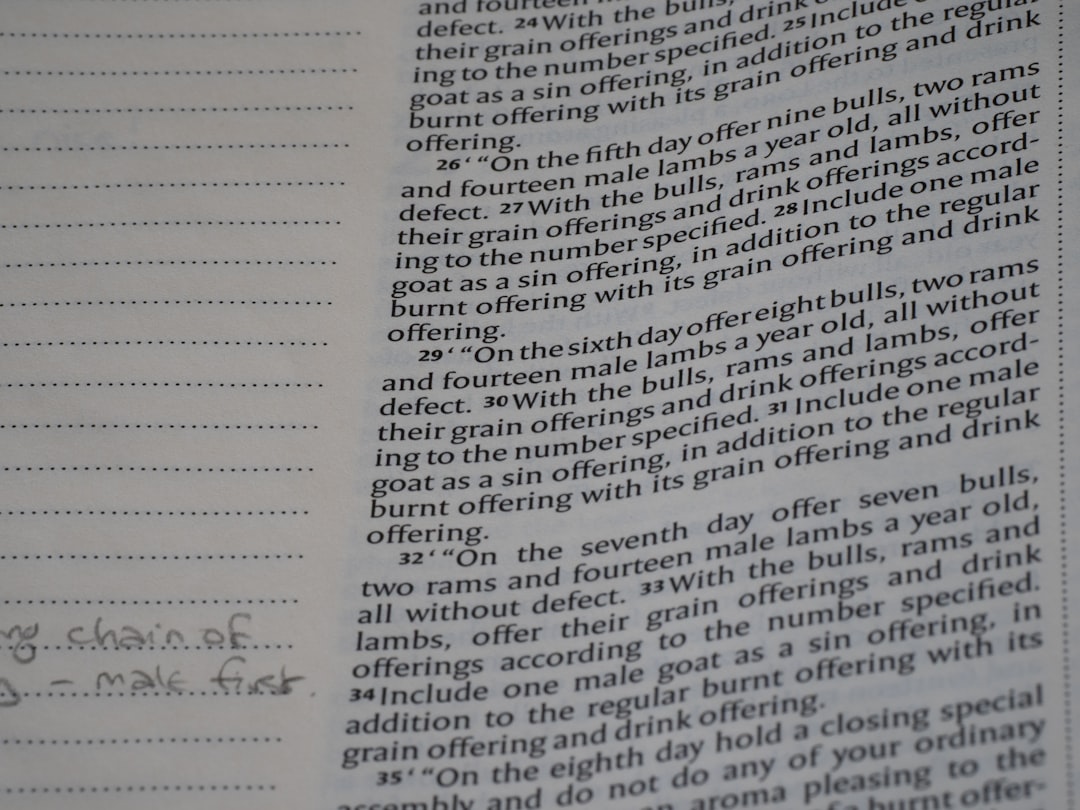
The fastest way to make a scanned PDF searchable is to run OCR, then save the file with an invisible text layer behind the page images. OCR, short for optical character recognition, reads the letters in scanned pages and turns them into selectable, searchable text. The PDF still looks like the original scan, but now you can search names, copy quotes, highlight clauses, and index the file in document systems.
TLDR: Use an OCR tool such as Adobe Acrobat, ABBYY FineReader, Google Drive, Microsoft OneNote, or a trusted online OCR service to recognize text in the scanned PDF. For example, a 42-page contract that once took 18 minutes to search by eye can often be made searchable in under 2 minutes. If the scan is clean and 300 DPI or higher, OCR accuracy can reach 95% to 99% for printed text. Always review key names, numbers, and dates after OCR, because one wrong digit can cause real trouble.
Why scanned PDFs are not searchable at first
A scanned PDF is often just a stack of images. Think of each page as a photo of paper, not a real document with text inside it. Your PDF reader can display the page, zoom in, and print it, but it cannot “read” the words unless a text layer exists.
That is why pressing Ctrl + F or Command + F sometimes gives you nothing. The word is visible to your eyes, but not to the computer. OCR fixes that by detecting shapes that look like letters and matching them to actual characters.
Image not found in postmetaStep 1: Check whether your PDF already has text
Before running OCR, do a quick test. Open the PDF and try to select a sentence with your mouse. If the words highlight cleanly, the PDF already contains text. If you drag a box over the page like you are selecting an image, it is probably scanned.
Next, use the search function. Search for an obvious word from the first page, such as a title, company name, or invoice number. If there are no results, OCR is needed.
This simple check can save time. It drives me crazy that some tools run OCR again on documents that already have a good text layer. That can bloat the file and sometimes make search results worse.
Step 2: Improve the scan before OCR
OCR quality depends heavily on scan quality. A poor scan can turn “S” into “5” or “rn” into “m.” That may sound small, until you are searching for “Martin” and the document thinks it says “Martm.”
For better results, aim for these settings:
- Resolution: 300 DPI is a strong baseline for printed text.
- Color mode: Black and white works for clean text. Grayscale helps with faded pages.
- Page angle: Straight pages OCR better than tilted ones.
- Contrast: Dark text on a light background gives the software clearer shapes.
- File condition: Remove blank pages, blurry pages, and duplicate scans when possible.
If you control the scanning process, use a flatbed scanner or a document feeder with deskew and despeckle options. If you only have a phone, use a scanning app rather than the normal camera. Scanning apps crop pages, flatten perspective, and sharpen text.
Step 3: Run OCR with the right tool
There are several good ways to make a PDF searchable. The best choice depends on how often you do this and how sensitive the document is.
Adobe Acrobat
Adobe Acrobat is one of the most common choices. Open the PDF, choose Scan & OCR, then select Recognize Text. Pick the language, choose all pages or a page range, and run the process. Save the file when it finishes.
Acrobat is useful for legal, business, and office files because it can keep the original page appearance while adding searchable text. It can also correct suspected OCR errors, though this review process can feel slow on large files.
ABBYY FineReader
ABBYY FineReader is excellent for high-accuracy OCR, especially with complex layouts, tables, multiple columns, and mixed languages. It is a strong option if you handle archives, contracts, academic papers, or old records.
Its strength is control. You can mark text areas, table areas, and image areas before exporting. That extra control helps when the page layout is messy.
Google Drive
Google Drive can OCR PDFs and images. Upload the file, right-click it, choose Open with, then select Google Docs. Google creates a document with the image and extracted text.
This is handy for quick jobs. The catch is that formatting may fall apart. Tables, headers, and footnotes can get messy. Use it when you need the words more than a perfect PDF copy.
Microsoft OneNote
OneNote can extract text from images and PDF printouts. Insert the PDF, right-click the page image, and choose Copy Text from Picture. Paste the result into a document.
This is not ideal for creating a polished searchable PDF, but it works for grabbing text from a few scanned pages.
Online OCR tools
Online OCR services are convenient. Upload the file, choose the language, run OCR, then download the searchable PDF. They are useful for one-off tasks.
Be careful with private files. Avoid uploading medical records, tax forms, contracts, client work, or identity documents unless the service has strong privacy terms and secure handling.
Step 4: Save as a searchable PDF, not just plain text
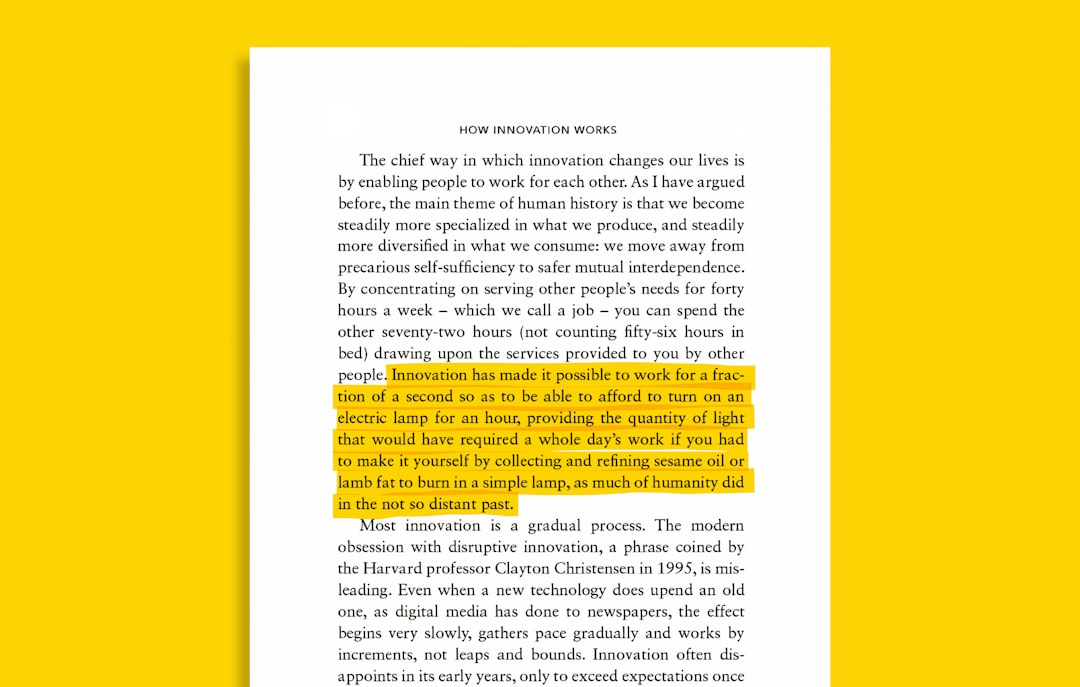
Many OCR tools offer several export formats. If your goal is a searchable PDF, choose an option like Searchable PDF, PDF with text layer, or Image over text.
The phrase image over text means the scan remains visible on top, while recognized text sits invisibly behind it. This is usually the best format for scanned records because it preserves the original look.
Other formats have different uses:
- Editable Word document: Best when you want to rewrite or reformat the content.
- Plain text: Best for extracting words only, with no layout.
- PDF/A: Best for long-term archiving and compliance needs.
Step 5: Test the finished PDF
Do not assume the job worked. Open the new PDF and search for several items:
- A common word from page one.
- A name from the middle of the file.
- A number, such as an invoice ID or case number.
- A word from a faded or stamped page.
Then try selecting and copying a sentence. Paste it into a text editor. If the pasted text is readable, the OCR layer is working.
Pay special attention to numbers. OCR errors in words are annoying. OCR errors in prices, dates, serial numbers, or account numbers can be expensive.
How to get better OCR accuracy
If the results are rough, try improving the source file and running OCR again. Small fixes can make a big difference.
- Use the correct language setting. A French invoice processed as English will produce odd results.
- Rotate sideways pages. OCR tools often detect rotation, but not always.
- Split huge files. A 600-page scan may process better in smaller batches.
- Clean dirty scans. Speckles, shadows, and punch holes can confuse recognition.
- Avoid over-compression. Tiny file sizes often mean damaged text edges.
Handwriting is harder. Printed forms with handwritten notes may only be partly searchable. Modern OCR can read some neat handwriting, but accuracy drops fast with cursive, cramped notes, or faded ink.
Security and privacy tips
OCR often involves sensitive documents. Treat scanned PDFs with care. If the file contains personal data, client details, signatures, financial records, or legal material, use offline desktop software when possible.
If you must use an online tool, check whether files are deleted after processing. Also check whether the service uses your uploads for training or analysis. If the privacy policy is vague, pick another option.
For business workflows, consider setting permissions after OCR. You can make the PDF searchable while still restricting editing, printing, or copying. You can also add password protection, redactions, and audit-friendly metadata.
Common problems and quick fixes
- Search finds the wrong words: Rerun OCR with a higher-quality scan or correct language.
- The file becomes huge: Use compression, but avoid settings that blur text.
- Columns read in the wrong order: Use an OCR tool that lets you define reading zones.
- Stamped text is missed: Increase contrast or process that page separately.
- Tables are broken: Export to Excel or use a tool with table recognition.
Making a scanned PDF searchable is not magic. It is a practical OCR workflow: check the file, clean the scan, recognize the text, save with a text layer, and test the result. Once done, the payoff is immediate. A dead scan becomes a useful document you can search, quote, organize, and find again without wasting half your afternoon.