
Choose AudioTrimmer when you only need to cut a file quickly; choose TwistedWave when the clip needs cleaner editing, fades, recording, or more control. AudioTrimmer is the simpler tool, and that is its main strength. It also publishes a 100 MB maximum upload size, which matters if you are trimming long WAV or MP3 files [source: AudioTrimmer]. TwistedWave is closer to a real audio editor in the browser, but it asks for more decisions before you get the final file.
TLDR: For a 30-second podcast intro, ringtone, voice note, or music sample, AudioTrimmer is usually faster: upload, drag the handles, cut, export. For example, a user trimming 12 short MP3 clips for a training course may save several minutes because there are fewer menus and fewer editing choices. TwistedWave is better if those same clips need fade-ins, volume fixes, recording, or careful edits at exact points. If speed is 80% of the job, pick AudioTrimmer; if precision is 80% of the job, pick TwistedWave.
Quick Verdict
AudioTrimmer is best for simple cutting. It feels like a utility, not a studio. That is good when the task is basic. You upload a file, select the section, trim it, and download the result.
TwistedWave is best for editing audio, not just cutting it. It gives you a waveform editor, recording tools, effects, and finer control. The tradeoff is time. Honestly, it feels like overkill if all you need is to remove 15 seconds from the start of an MP3.
Ease of Use
AudioTrimmer is the easier product to understand in the first minute. The interface is plain. It does not ask you to learn much. You can usually see the start and end handles right away, then move them to keep the part you want.
This makes it suitable for casual users, students, marketers, teachers, and anyone cutting short clips for social media or internal training. There is little friction. You do not need to think about tracks, effects chains, or project settings.
TwistedWave has a steeper learning curve. It is still browser-based, but it behaves more like an editor. That means more power, but also more places to click. If you are new to editing, expect to waste time on small choices such as selection behavior, zoom level, export format, and effect settings.
That extra complexity is not bad. It just needs a reason. If your clip has background noise, uneven volume, or rough start and end points, TwistedWave gives you more room to fix it.
Trimming Speed
For pure cutting, AudioTrimmer is usually faster. The workflow is direct:
- Upload the audio file.
- Select the section to keep or remove.
- Apply the trim.
- Download the finished clip.
That is enough for ringtones, short music cuts, interview excerpts, and voice memos. If your source file is already clean, AudioTrimmer gives you the least resistance.
TwistedWave takes longer because it offers more. You may need to create or open a project, inspect the waveform, zoom in, select the cut area, apply edits, then export. For a single clip, the time difference may be small. For 20 clips, it adds up.
It drives me crazy when a simple trim turns into a mini production session. That is where AudioTrimmer wins. It keeps the job small.
Editing Accuracy
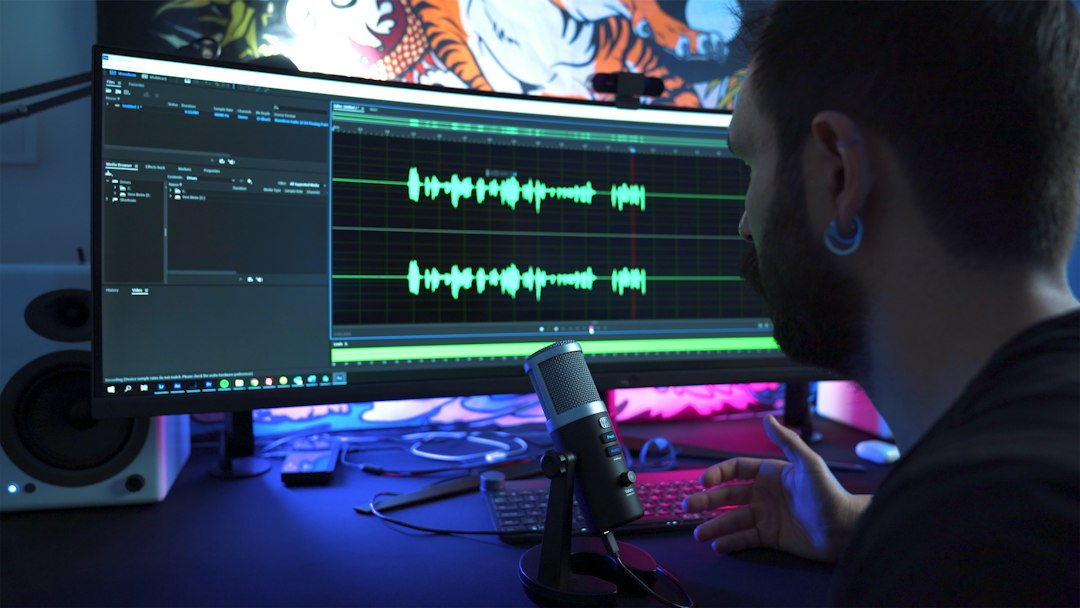
TwistedWave is stronger when accuracy matters. Its waveform view gives better feedback, especially when editing speech. You can see pauses, breath sounds, peaks, and quiet gaps with more confidence.
AudioTrimmer is accurate enough for broad cuts. If you need to remove the first 8 seconds of a track, it works well. If you need to cut between two syllables in a voiceover, TwistedWave is safer.
Use TwistedWave when the edit must sound clean through headphones. Use AudioTrimmer when the cut only needs to be close enough for casual playback.
Format Support and Export
AudioTrimmer supports common audio formats used by everyday users. MP3 and WAV are the most relevant for most trimming jobs. It is also useful for ringtone-style work, where a quick format change can be part of the task.
TwistedWave is better suited to users who care about output quality and audio processing. It can fit into a more serious workflow, especially if you are preparing files for publishing, lessons, voiceovers, or client review.
Before choosing either tool, check three things:
- Input format: Can the tool open your source file?
- Output format: Can it export the type you need?
- File length and size: Will the browser upload and process it without trouble?
Large uncompressed WAV files can be painful in any browser tool. A 40-minute WAV may upload slowly, even if the tool accepts it. For heavy files, desktop software may still be saner.
Audio Quality
Neither tool can improve a bad recording by trimming alone. Cutting only changes the start, middle, or end. If the source has hiss, clipping, echo, or uneven volume, you need editing tools.
This is where TwistedWave has the edge. It is better for fades, gain changes, normalization, and small repairs. These edits can make a clip sound more polished. For voice content, that matters.
AudioTrimmer is more limited. It is made for cutting, not full cleanup. That is fine for music clips, simple excerpts, or cases where the audio is already finished.
Privacy and Upload Concerns
Both tools are online, so your file is uploaded or processed through a browser-based service. That may be fine for public music snippets or non-sensitive training audio. It may not be fine for legal calls, medical dictation, private interviews, or unreleased client material.
For confidential content, do not use any online trimmer without reading its privacy terms. TwistedWave publishes terms and product details for its online editor [source: TwistedWave]. AudioTrimmer also has site policies users should check before uploading sensitive files.
A practical rule works well: if you would not email the file to a stranger, think twice before uploading it to a web editor.
Best Use Cases for AudioTrimmer
Pick AudioTrimmer if your task matches one of these cases:
- You need to cut a song into a short clip.
- You are making a ringtone or notification sound.
- You are removing silence from the start or end.
- You need a fast edit with no account setup.
- You are processing a few short files and do not need effects.
AudioTrimmer is the practical choice when the audio is already good and the edit is simple. It is also easier to hand to a non-technical team member. That has business value. Fewer instructions mean fewer mistakes.
Best Use Cases for TwistedWave
Pick TwistedWave if your task needs more care:
- You are editing spoken audio for a podcast or course.
- You need fade-ins or fade-outs.
- You want to record audio in the browser.
- You need to adjust loudness or apply effects.
- You need more precise waveform editing.
TwistedWave is better for creators who treat audio as published material. It is also better when the cut is only one part of the job.
Pricing and Practical Value
AudioTrimmer is attractive because it feels lightweight and accessible. For occasional work, that is hard to beat. You do not want a paid audio editor just to cut one lecture clip or shorten a song sample.
TwistedWave may be worth paying for if audio editing is part of your regular work. The value is not in the trim itself. The value is in the extra tools around the trim: recording, effects, editing detail, and a more complete production flow.
Final Recommendation
Use AudioTrimmer for speed. It is the better choice for quick cuts, small jobs, and users who do not want to learn audio editing. It gets out of the way.
Use TwistedWave for control. It is the better choice for voice work, careful edits, fades, level fixes, and clips meant for public release.
The simplest decision is this: if the clip only needs to be shorter, use AudioTrimmer. If the clip needs to sound better, use TwistedWave.