
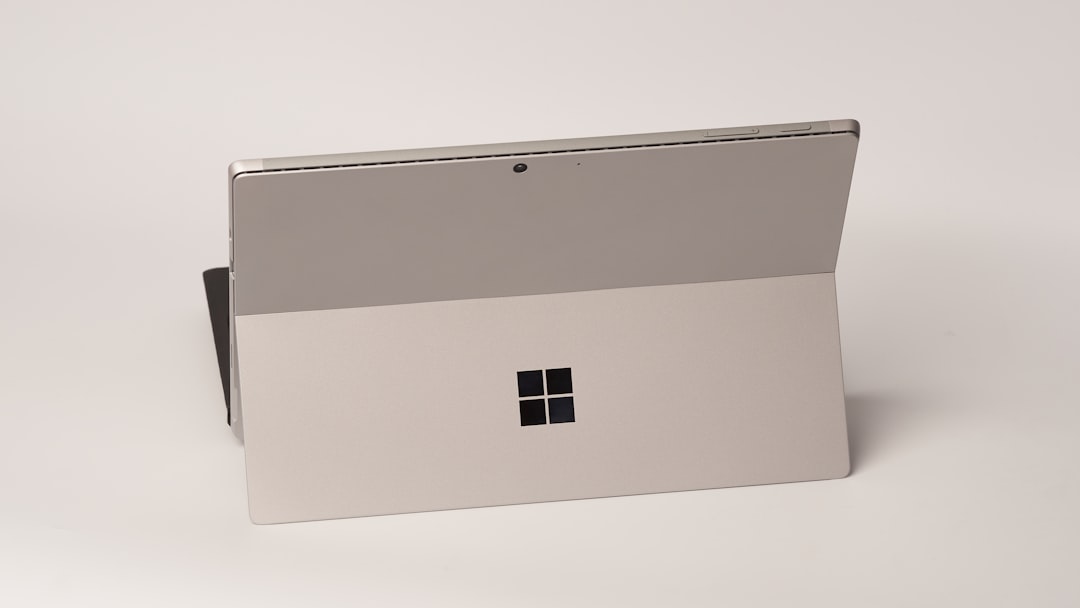
If the keyboard backlight on your Microsoft Surface Book 2 has stopped working, it can be frustrating—especially if you often work in dim rooms, on flights, or late at night. In many cases, the issue is not caused by a broken keyboard, but by a setting, a temporary firmware glitch, a low battery condition, or a connection problem between the tablet and keyboard base.
TLDR: The Surface Book 2 keyboard backlight may stop working because the brightness is turned down, the keyboard base is not communicating properly, the battery is too low, or Windows and Surface firmware need updates. Start by adjusting the keyboard backlight key, restarting the device, detaching and reattaching the screen, and installing all Windows and Surface updates. If the backlight still does not work after software fixes and a force restart, the keyboard base may have a hardware fault and may need professional service.
How the Surface Book 2 Keyboard Backlight Works
The Surface Book 2 has a backlit keyboard built into the keyboard base. Unlike some external keyboards, the backlight is controlled through the device firmware, Windows power management, and the keyboard hardware itself. This means that a backlight problem may be related to several different areas: the keyboard brightness setting, the connection between the display and base, Surface drivers, the battery, or the physical keyboard assembly.
Before assuming the keyboard is defective, it is important to work through the most likely causes carefully. A serious troubleshooting approach can save time, prevent unnecessary repairs, and help you identify whether the issue is software related or hardware related.

1. Check the Keyboard Backlight Brightness Key
The simplest explanation is often the correct one: the keyboard backlight may be turned off or set to its lowest level. On the Surface Book 2 keyboard, look for the key with the keyboard backlight icon. It is usually located on the top row of function keys.
Press the backlight key several times. The keyboard backlight usually cycles through different brightness levels, such as:
- Off
- Low brightness
- Medium brightness
- High brightness
If nothing happens, try pressing the key while holding Fn. Depending on your function key lock setting, the top-row keys may behave differently. Pressing Fn + Caps can toggle function lock on some Surface keyboards, which may affect how the top-row keys respond.
Also test whether other special keys work, such as volume, screen brightness, or detach. If none of these keys respond properly, the issue may be broader than just the keyboard backlight.
2. Restart the Surface Book 2
A normal restart can resolve temporary problems with Windows, the Surface keyboard driver, or power management. This is especially true if the device has been waking from sleep repeatedly or has been running for many days without a full restart.
To restart properly:
- Click Start.
- Select Power.
- Choose Restart.
- Wait for the Surface Book 2 to fully reboot.
- Test the keyboard backlight again.
A restart is different from simply closing the lid or allowing the device to sleep. Sleep mode preserves the current session and may also preserve the fault that caused the backlight to stop responding.
3. Detach and Reattach the Display
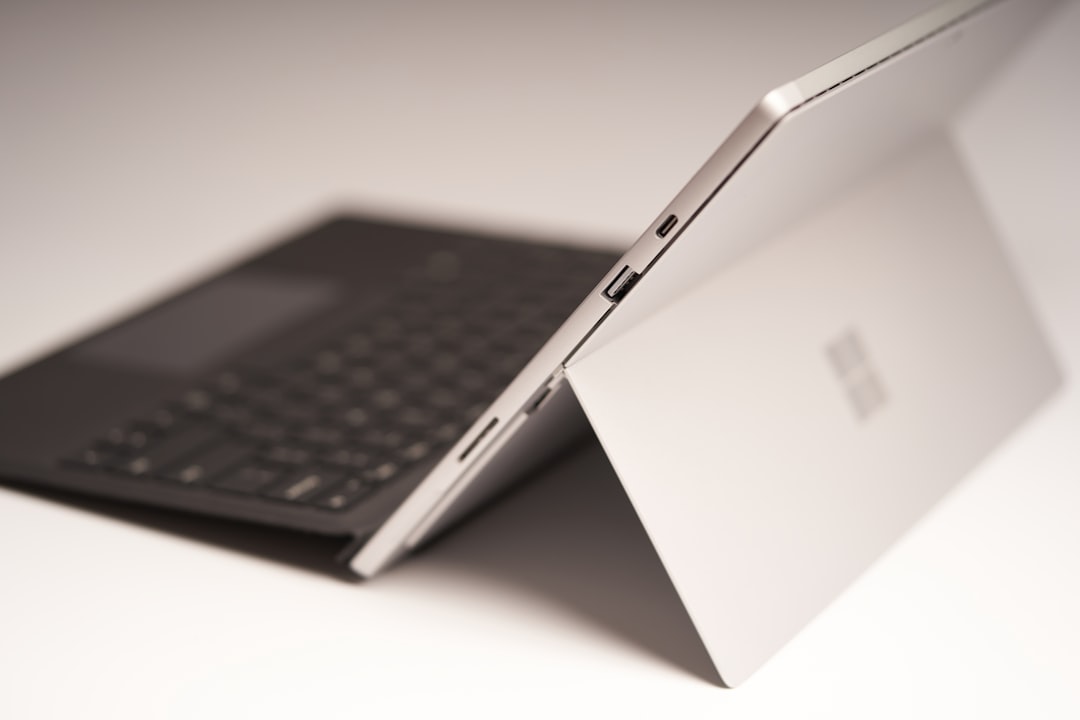
The Surface Book 2 is designed with a detachable screen that connects to the keyboard base through a specialized docking mechanism. If that connection is slightly unstable, some keyboard functions can fail, including the backlight.
Press the Detach key and wait until the system says it is ready to detach. Remove the screen carefully, inspect the connector area for dust or debris, and then reattach it firmly. You should hear or feel the connection lock into place.
If the detach key does not work, use the on-screen detach option:
- Select the Surface Detach icon in the taskbar, if available.
- Wait for confirmation that it is safe to detach.
- Remove the display and reconnect it.
When reattaching, avoid forcing the screen into place. The alignment should be smooth. If the connection feels uneven or unreliable, there may be an issue with the hinge, connector, or base.
4. Clean the Connector Contacts Carefully
Dust, lint, or oxidation on the connector contacts between the tablet and keyboard base can interfere with communication. This may not always stop the keyboard from typing, but it can affect features such as charging, GPU connection on certain models, or keyboard lighting.
Turn off the Surface Book 2 before cleaning. Detach the screen and inspect the metal contacts on both the tablet and keyboard base. Use a clean, dry microfiber cloth to wipe the area gently. If needed, use a small amount of isopropyl alcohol on the cloth, but do not pour liquid directly onto the device.
Do not use sharp tools, metal objects, or excessive pressure. The connector pins are delicate and can be damaged if handled carelessly.
5. Install Windows and Surface Firmware Updates
Surface devices rely heavily on firmware and driver updates. A missing or outdated Surface driver can cause keyboard, battery, sleep, display, or docking issues. Microsoft often distributes Surface firmware updates through Windows Update.
To check for updates:
- Open Settings.
- Go to Windows Update.
- Select Check for updates.
- Install all available updates, including optional firmware or driver updates.
- Restart the Surface Book 2 after installation.
You should also check Advanced options under Windows Update and review Optional updates. Driver updates may sometimes appear there instead of installing automatically.
After updating, test the backlight again using the keyboard backlight key. If the problem was caused by a driver or firmware communication issue, this step may resolve it completely.
6. Run the Surface Diagnostic Toolkit
Microsoft provides the Surface Diagnostic Toolkit to help identify and repair common Surface problems. It can check system files, hardware detection, battery status, Windows Update configuration, and device-specific settings.
This tool is particularly useful because the Surface Book 2 is not a standard laptop. Its detachable design, dual batteries, and base connection make diagnosis more complex than on a typical notebook computer.
Run the toolkit, follow the instructions, and restart when prompted. If the tool identifies a driver or system problem, allow it to apply recommended fixes. If it reports a hardware issue, take that seriously and consider contacting Microsoft support or a qualified repair provider.
7. Check Battery Level and Power Mode
The Surface Book 2 has batteries in both the display section and the keyboard base. If battery levels are very low, the device may reduce or disable certain nonessential features to conserve power. While the keyboard should generally continue working, the backlight may behave unpredictably when power conditions are poor.
Connect the original Surface charger and allow the device to charge for at least 20 to 30 minutes. Then restart the device and test the keyboard backlight again.
You should also check whether Battery Saver is enabled:
- Open Settings.
- Go to System.
- Select Power & battery.
- Turn off Battery saver temporarily.
- Set the power mode to a balanced or higher performance option.
Although Battery Saver should not permanently disable the keyboard backlight, it can affect background behavior and power-related device functions.
8. Perform a Force Restart
If a normal restart does not help, a force restart may clear a deeper firmware or hardware communication glitch. This is a common troubleshooting step for Surface devices when the keyboard, touch screen, charging, or detach mechanism behaves incorrectly.
To force restart the Surface Book 2:
- Press and hold the Power button for about 20 seconds.
- Release the button when the Surface logo appears or the device restarts.
- Wait for Windows to load fully.
- Test the keyboard backlight again.
This process does not erase your files. It simply forces the hardware and firmware to restart more completely than a standard Windows reboot.
9. Check Device Manager for Keyboard or Firmware Problems
Device Manager can help reveal whether Windows is detecting a problem with the keyboard, Surface firmware, or related hardware.
To check:
- Right-click Start and select Device Manager.
- Expand categories such as Keyboards, Firmware, System devices, and Human Interface Devices.
- Look for warning symbols, unknown devices, or disabled entries.
- If you see a warning, right-click the device and select Properties to read the error message.
If a keyboard or firmware device appears to be malfunctioning, you can try selecting Update driver. In some cases, uninstalling the affected device and restarting Windows allows the system to reinstall the driver automatically. However, do this carefully and avoid uninstalling unfamiliar system components unless you understand what they are.
10. Test in the UEFI Menu
Testing outside Windows can help determine whether the issue is caused by the operating system or by hardware. The Surface UEFI menu runs before Windows loads, so it is useful for basic hardware-level checks.
To enter UEFI:
- Shut down the Surface Book 2.
- Press and hold Volume Up.
- While holding it, press and release the Power button.
- Keep holding Volume Up until the UEFI screen appears.
Once there, try using the backlight key. If the keyboard backlight works in UEFI but not in Windows, the problem is likely software, driver, or configuration related. If it does not work in UEFI either, the issue may be firmware-level or hardware-related.

11. Consider Recent Changes
Think about what happened before the backlight stopped working. Troubleshooting is easier when you can connect the problem to a recent change.
Common triggers include:
- A major Windows update
- A failed or interrupted firmware update
- Battery drain or sudden shutdown
- Liquid exposure or high humidity
- Dropping or flexing the device
- Using a third-party charger or dock
If the issue started immediately after a Windows update, check for additional updates first. Microsoft often releases follow-up fixes. If the issue started after physical damage or liquid exposure, software troubleshooting may not be enough.
12. When It May Be a Hardware Problem
If you have tried brightness adjustment, restart, force restart, cleaning, updates, diagnostics, and UEFI testing, and the backlight still never turns on, the keyboard base may have a hardware fault. The LEDs, keyboard controller, internal cable, or base connector may be damaged.
Signs that point toward hardware failure include:
- The keyboard types normally, but the backlight never turns on under any condition.
- The backlight flickers when the screen angle changes.
- The keyboard base sometimes disconnects or stops charging.
- The issue began after a drop, spill, or impact.
- The problem appears in both Windows and UEFI.
Because the Surface Book 2 is a compact and specialized device, keyboard backlight hardware repairs are not always simple. In many cases, repair involves servicing or replacing the keyboard base rather than replacing individual LEDs.
Final Advice
A non-working Surface Book 2 keyboard backlight is usually caused by a simple setting, a temporary connection issue, outdated firmware, or a power management problem. Start with the basic checks: press the backlight key, restart the device, detach and reattach the screen, clean the connectors, and install all updates.
If those steps fail, move on to the Surface Diagnostic Toolkit, Device Manager checks, a force restart, and UEFI testing. These steps help separate software problems from hardware faults. If the backlight does not work even outside Windows and there are signs of physical or connector-related trouble, it is reasonable to treat the issue as a hardware problem and seek professional support.
In short: do not assume the keyboard is broken immediately, but do not ignore persistent symptoms either. A careful, step-by-step approach gives you the best chance of restoring the backlight—or confirming with confidence that the Surface Book 2 keyboard base needs service.