

A network security key is usually the Wi-Fi password on home and small office networks. Windows often calls it a network security key, while macOS usually asks for a Wi-Fi password. In most WPA2-Personal or WPA3-Personal networks, both terms point to the same thing: the secret phrase needed to join the wireless network.
TLDR: If your router uses WPA2-Personal or WPA3-Personal, your network security key is the same as your Wi-Fi password. For example, if a router sticker shows Wi-Fi Password: BlueRiver7421, Windows may ask you to enter that as the network security key. In a 50-person office, though, users may sign in with company credentials or certificates instead of one shared password. That setup is common in business networks because shared passwords are harder to control and audit.
Wi-Fi Password vs Network Security Key
The phrase Wi-Fi password is the plain-language term most people understand. It is the password you type when joining a wireless network.
The phrase network security key is more technical. It refers to the secret material used to authenticate a device to a secured network. On a normal home router, that secret is the Wi-Fi password. On a corporate network, it may be a certificate, a username and password, a smart card, or another authentication method.
That naming difference causes needless confusion. It drives me crazy that Windows still asks many users for a “network security key” when the router label says “password.” The same user may spend 30 seconds checking the wrong setting, even though the answer is sitting on the router sticker.

What the Key Actually Does
A wireless password does not simply “unlock” Wi-Fi in a basic sense. It helps create encrypted communication between your device and the access point. With modern Wi-Fi security, the password is part of a process that proves your device is allowed to join and helps protect traffic from casual interception.
Common Wi-Fi security modes include:
- WPA2-Personal: Still widely used. It usually relies on a shared Wi-Fi password.
- WPA3-Personal: Newer and stronger. It also uses a password, but handles authentication better through SAE.
- WPA/WEP: Older standards. WEP is unsafe and should be replaced.
- WPA2-Enterprise or WPA3-Enterprise: Used by businesses, schools, and larger organizations. Authentication often uses 802.1X, certificates, or directory accounts.
For a home user, the practical answer is simple: if Windows asks for a network security key, type the Wi-Fi password exactly as shown in your router settings or on the router label.
How Windows Handles Wireless Authentication
Windows uses the WLAN AutoConfig service to detect wireless networks, store profiles, and connect automatically when allowed. When you join a secured network, Windows saves a wireless profile that includes the SSID, security type, encryption type, and saved authentication data.
On personal networks, Windows commonly asks for the network security key. This is the same key your router expects. If the password is correct, Windows completes the authentication process and stores the profile for later use.
Windows may show different behavior depending on the network type:
- Home WPA2 or WPA3 network: Windows asks for a network security key once, then reconnects automatically.
- Hidden SSID: Windows may require both the network name and the key.
- Enterprise Wi-Fi: Windows may ask for a username, password, certificate approval, or sign-in through a company system.
- Changed router password: Windows may keep trying the old saved key until you forget the network and reconnect.
The annoying part is that a saved bad profile can make Windows look broken. A user may type the correct new password three times, but Windows still clings to the old profile. In that case, the fix is often simple: go to Settings > Network & Internet > Wi-Fi > Manage known networks, select the network, choose Forget, then connect again.
Administrators can also manage Wi-Fi profiles through Group Policy, mobile device management, or command-line tools. For example, netsh wlan show profiles can list saved profiles. On managed machines, users may not be allowed to view stored keys, which is a sensible security control.
How macOS Handles Wireless Authentication
macOS uses a more user-friendly label. It usually asks for a password, not a network security key. Behind the scenes, the same kind of authentication still occurs.
When a Mac joins a Wi-Fi network, macOS stores the saved network details in system configuration files and may store secrets in Keychain. If iCloud Keychain is enabled, Wi-Fi passwords can sync across Apple devices that use the same Apple ID, subject to Apple’s security controls.

macOS handles common networks in these ways:
- Personal Wi-Fi: The user enters the Wi-Fi password. macOS saves it for future use.
- Enterprise Wi-Fi: The user may need organization credentials, a configuration profile, or a trusted certificate.
- Shared Apple ecosystem: Nearby Apple devices may offer password sharing if contacts and Apple ID trust settings allow it.
- Changed password: macOS may fail silently for a short time before asking again, which can feel vague and unhelpful.
To remove a saved network on macOS, users can open System Settings > Wi-Fi, view known networks, and remove the old entry. For tougher cases, checking Keychain Access may help, especially when an old password keeps reappearing.
Why Windows and macOS Use Different Words
Windows has long used terminology suited to both home users and IT staff. “Network security key” is technically broad. It can cover a shared password, but it also fits more advanced authentication models.
macOS tends to use consumer language. “Password” is easier for most users. That does not mean macOS is less secure. It simply presents the request in a simpler way.
The difference is mostly wording. The security process depends on the router, access point, encryption mode, and authentication standard. A Windows laptop and a MacBook connecting to the same WPA2-Personal network both need the same Wi-Fi password.
Common Mistakes That Cause Failed Connections
Most wireless authentication problems come from small errors. The common ones are easy to miss:
- Typing the wrong case: Wi-Fi passwords are case-sensitive. RiverHouse9 is not the same as riverhouse9.
- Confusing router admin password with Wi-Fi password: The admin password opens router settings. The Wi-Fi password joins the network.
- Using the wrong band or SSID: Some routers have separate 2.4 GHz and 5 GHz names.
- Old saved profile: The device may keep trying an outdated password.
- Weak legacy security: WEP and old WPA modes may be blocked or discouraged by modern systems.
If authentication fails, first confirm the password from the router admin page rather than relying on memory. Then forget the network on the device and reconnect. This clears stale settings and forces a clean authentication attempt.
Security Advice for Home and Office Networks
Use WPA3-Personal if all your devices support it. If not, use WPA2-Personal with AES. Avoid WEP and avoid mixed modes that keep old weak options alive.
A strong Wi-Fi password should be long, random enough, and not reused elsewhere. A practical target is 14 to 20 characters or more. A phrase such as MapleTrainCoffee72 is easier to type than a short string of symbols and usually stronger than a simple eight-character word.
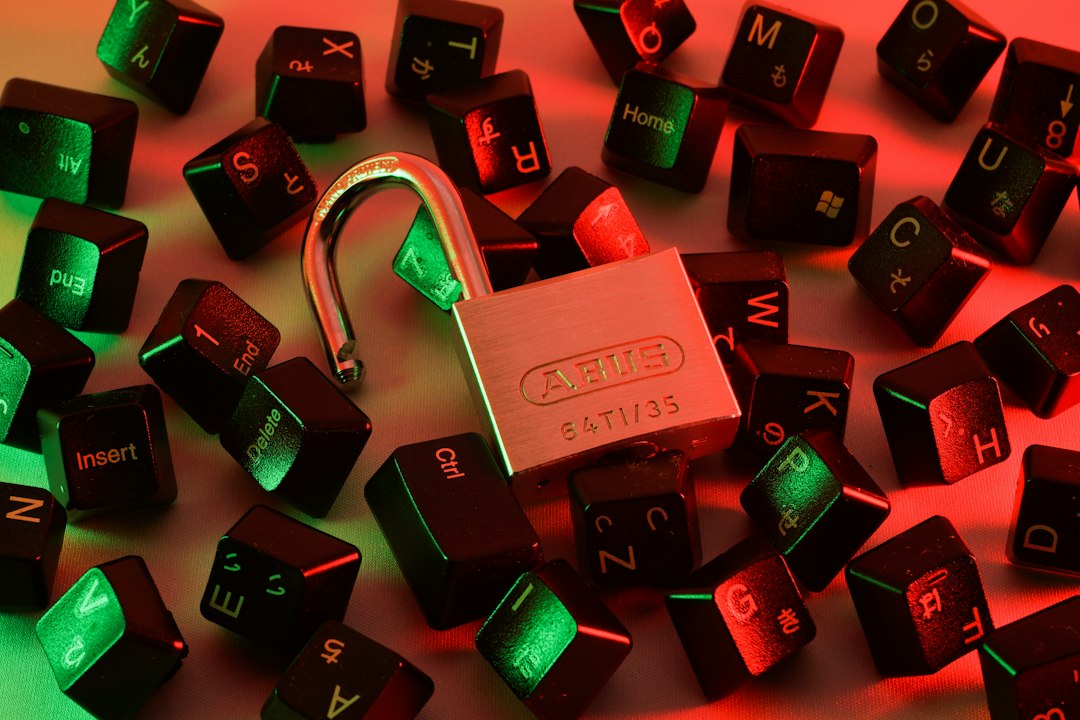
For offices, shared Wi-Fi passwords become risky as staff changes. If 10 employees know one password and one person leaves, the whole network may need a password change. Enterprise authentication solves this better because each user or device can be approved, blocked, or audited separately.
The Practical Bottom Line
If you see network security key on Windows, think Wi-Fi password. If you see password on macOS, it is asking for the same shared secret on normal home networks. The wording differs, but the goal is the same: prove the device is allowed to join and protect the wireless session.
For most users, the fastest fix is to verify the password on the router, forget the saved network, and reconnect. For businesses, use Enterprise Wi-Fi wherever possible. It gives better control, cleaner access removal, and fewer awkward password-sharing problems.