
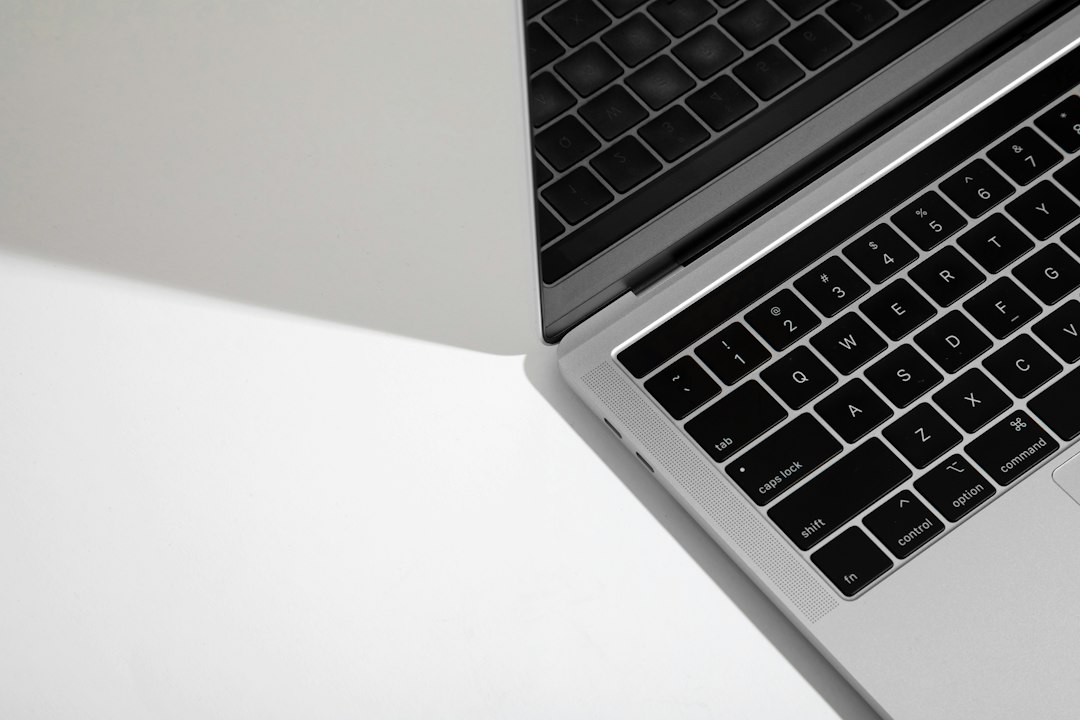
Test with an external monitor first, then run Apple Diagnostics, because a working external display usually points toward the MacBook Pro’s internal display, backlight circuit, display cable, or lid assembly rather than the graphics system. Apple Diagnostics can check hardware and show reference codes, but Apple describes it as a tool that helps identify hardware issues, not as a full board-level display inspection [source: Apple].
TLDR: If your MacBook Pro screen is black but an external monitor works, the main logic board and GPU are probably still producing video. For example, if the internal display stays black in 10 out of 10 restarts, but HDMI or USB-C video works every time, suspect the internal screen path before blaming macOS. Apple Diagnostics is still worth running, but it may pass even when a backlight cable, display panel, or fuse is failing. Use both tests together for a cleaner diagnosis.
Why this issue is so often misread
A MacBook Pro display backlight fault can look worse than it is. The machine may start normally. You may hear the startup chime. The keyboard may light up. Touch ID may work. Yet the screen stays black, dim, flickering, or only visible under a bright flashlight.
That last detail matters. If you shine a phone flashlight through the Apple logo side or across the screen and can faintly see the login window, the LCD is probably creating an image. The backlight is not doing its job. That shifts the suspicion away from macOS and toward the display assembly, backlight power circuit, or flex cable.
Honestly, it feels like a trap because the symptom looks like a dead computer. In many cases, it is not. The Mac is awake, booted, and waiting for input. You just cannot see it.
What Apple Diagnostics can and cannot tell you
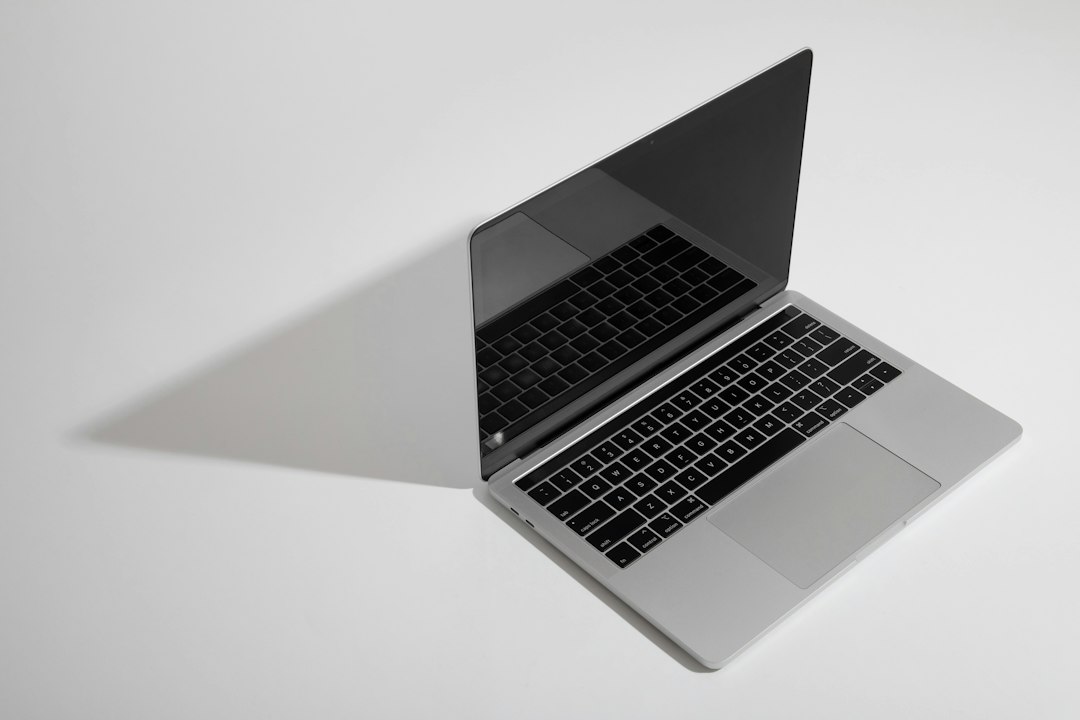
Apple Diagnostics is useful. It can detect some hardware faults and return reference codes related to memory, power, sensors, storage, or logic board problems. On Intel Macs, you usually start it by holding D at boot. On Apple silicon Macs, you hold the power button until startup options appear, then press Command D.
For display backlight issues, the tool has limits. It may not flag a weak display cable. It may not catch an intermittent backlight failure. It may not identify a panel that works cold but fails after five minutes. It is also not a visual inspection. It cannot see the “stage light” pattern at the bottom of the screen, and it cannot judge whether brightness is uneven.
Expect to waste time if you treat a “no issues found” result as final proof. A clean diagnostics result means no fault was detected by that tool during that run. It does not mean the display assembly is healthy.
What external monitor testing proves
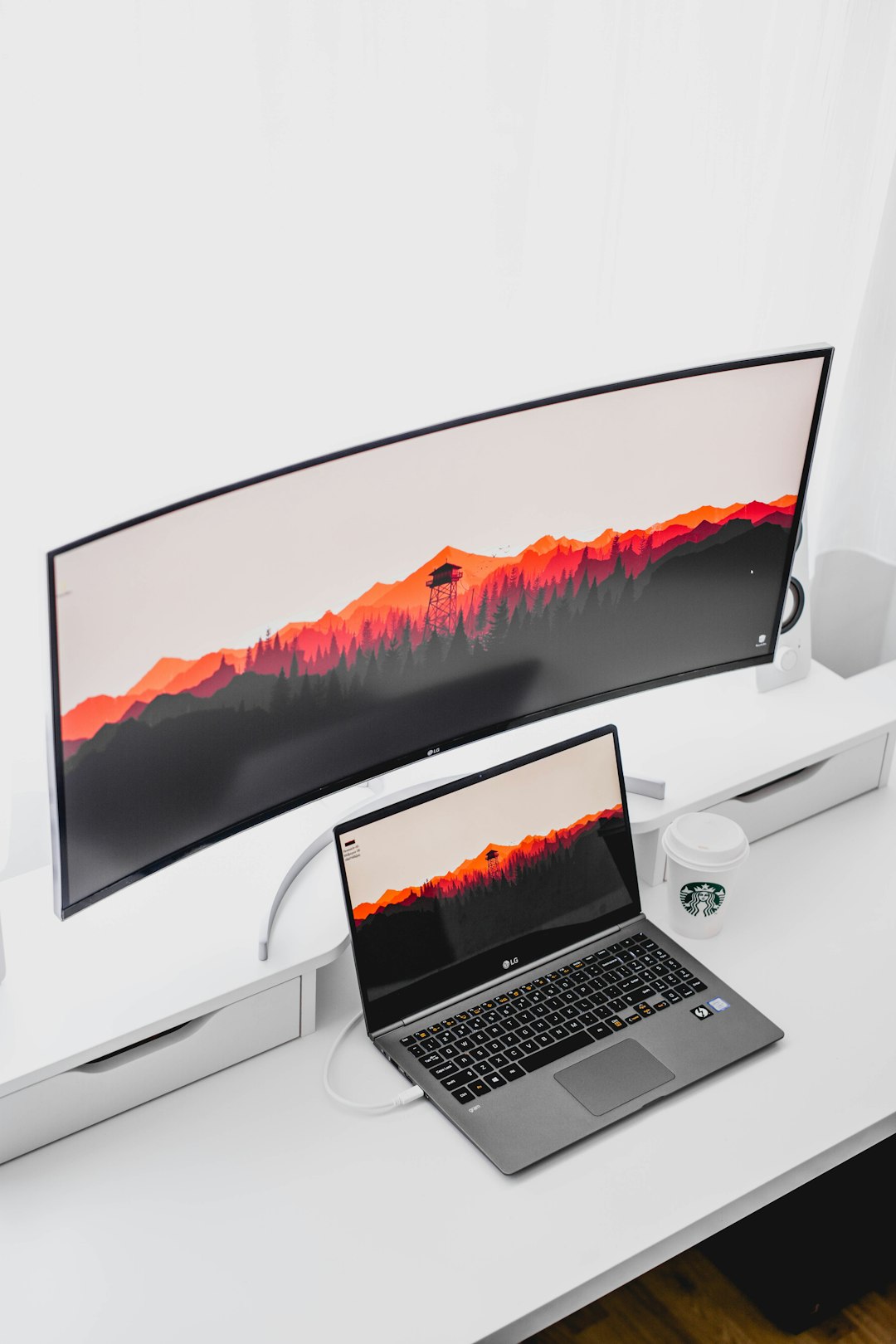
External monitor testing is more direct. It tells you whether the Mac can produce video outside the built-in screen. Connect a known-good monitor or TV with a known-good cable. Use the correct adapter. Wait at least 30 seconds after connecting. Then try waking the Mac, entering the password, or closing and opening the lid.
If the external monitor shows a normal desktop, that is strong evidence that the Mac is booting and the graphics output is functional. In that case, the fault is more likely in one of these areas:
- Internal display panel, including backlight layers or LCD failure.
- Display flex cable, especially if the image changes when the lid angle changes.
- Backlight power circuit on the logic board.
- Backlight fuse or related board component.
- Lid angle sensor or sleep behavior, if the Mac thinks the lid is closed.
If the external monitor also stays black, the problem may be broader. It could involve power, firmware, macOS startup, the GPU path, the USB-C/HDMI adapter, or a failed logic board. Do not jump straight to the display in that case.
Best practical test order
Use a simple order. It reduces false guesses and saves repair money.
- Check brightness first. Press the brightness up key several times. It sounds basic, but it catches simple mistakes.
- Shine a flashlight on the screen. Look for a faint login window, desktop, cursor, or Apple logo.
- Connect an external monitor. Use a monitor and cable you already trust.
- Run Apple Diagnostics. Record any reference code exactly as shown.
- Test lid angle. Slowly move the display from nearly closed to fully open. Watch for flicker, stripes, or sudden backlight changes.
- Boot to macOS Recovery or Safe Mode. If the fault appears before macOS loads, software is less likely.
This order gives you both visual evidence and diagnostic data. A repair shop will take you more seriously if you can say, “The internal screen is black, the flashlight test shows a faint image, external USB-C display works, and Apple Diagnostics gave no code.” That is far better than saying, “The screen died.”
How to read the results
Use this quick guide:
- Internal display black, external monitor works: likely internal display path issue.
- Faint image visible with flashlight: likely backlight failure, not total LCD failure.
- Screen flickers when lid moves: possible display cable or hinge-related fault.
- Both internal and external displays fail: possible startup, power, graphics, firmware, or board issue.
- Apple Diagnostics shows no issue: still possible to have a backlight or cable fault.
- Apple Diagnostics returns a code: document it before repair or support contact.
Model-specific warning signs
Some MacBook Pro generations are known for display cable and backlight complaints. The phrase “stage light” describes bright and dark patches along the bottom edge of the display, often caused by display cable stress. Apple previously ran a service program for certain 13-inch MacBook Pro models from 2016 with backlight issues, covering machines sold during a specific period [source: Apple].
That does not mean every newer or older Mac has the same defect. It does mean you should pay close attention to lid angle symptoms. If the backlight cuts out at 45 degrees but returns at 70 degrees, that is not normal software behavior. It is physical evidence.
When Apple Diagnostics is the better tool
Apple Diagnostics is better when the external monitor test fails too. It can help separate display-only faults from wider hardware trouble. If the Mac restarts, overheats, refuses to charge, or shows power issues, diagnostics may provide a useful code.
It is also useful before selling, buying used, or sending the Mac for service. A saved reference code can support your case. Still, it should be treated as one clue. Not the whole answer.
When external monitor testing is the better tool
External monitor testing is better when the Mac seems alive but the built-in display is not usable. It answers the most urgent question: Is the computer still producing video?
If the answer is yes, you can back up data, finish urgent work, or prepare for repair. This is a big deal. A user with a black internal display and a working external monitor can often make a Time Machine backup in under an hour. A user who assumes the Mac is dead may lose days waiting for a repair slot.
Common mistakes to avoid
- Do not erase macOS first. A backlight fault will not be fixed by reinstalling the system.
- Do not trust one cable. Bad USB-C adapters are common and annoying.
- Do not press the screen hard. That can crack the panel or worsen cable damage.
- Do not ignore liquid history. Even a small spill can damage backlight circuits.
- Do not assume diagnostics will catch everything. It often will not.
What to tell a technician
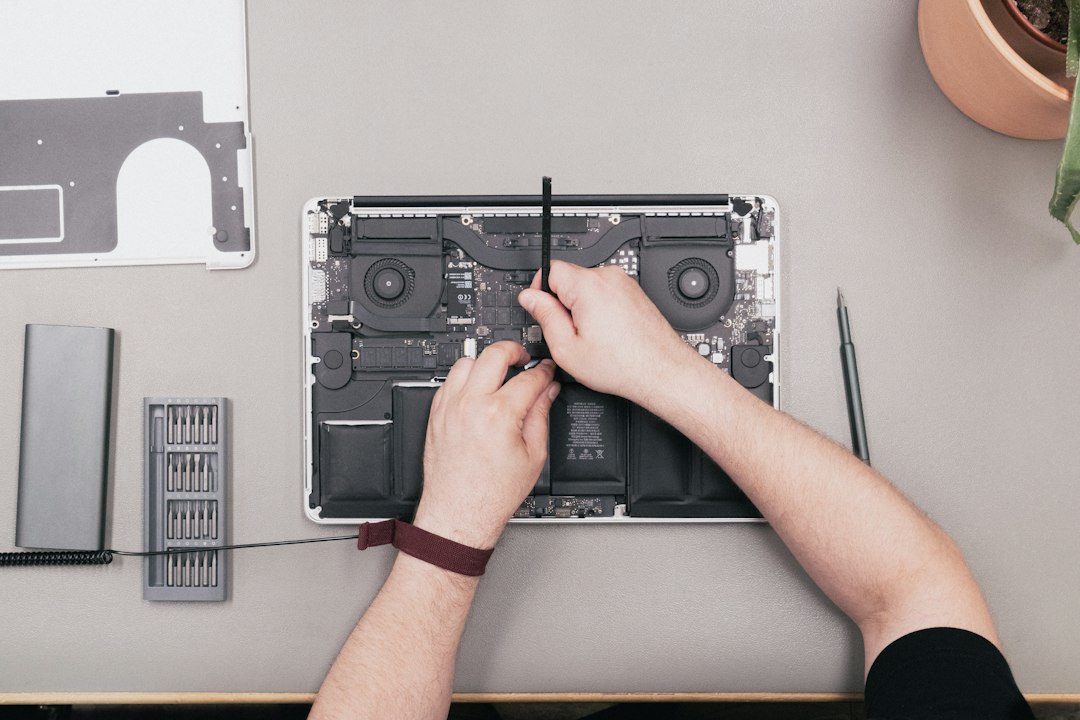
Give clear facts. Mention the MacBook Pro model year, macOS version if known, whether the keyboard backlight works, whether the external display works, and whether the flashlight test shows a faint image. Include any Apple Diagnostics code.
A strong report sounds like this: “MacBook Pro boots and works on external monitor. Internal display is black. Flashlight shows faint login screen. Brightness keys do not restore backlight. Lid angle changes nothing. Apple Diagnostics reports no issue.”
That information points the repair in the right direction. It may also prevent needless software work. For backlight issues, the best answer rarely comes from one test. Use external monitor testing to prove video output, then use Apple Diagnostics to check for broader hardware faults. Together, they give you the cleanest path from black screen to smart repair decision.