
Use Canva if you want animated Instagram content fast. Use Adobe Express if you want cleaner brand control and slicker motion. For Instagram, remember this: a real GIF file is not always the best upload choice. Most “GIF posts” work better when exported as MP4 video, while Stories can use GIF stickers from Instagram’s sticker tray, and Stories disappear after 24 hours unless saved as Highlights [source: Instagram].
First, what does “adding a GIF to Instagram” mean?
It can mean three things.
- Adding a GIF sticker to an Instagram Story or Reel.
- Uploading an animated design that looks like a GIF.
- Turning a GIF into a short video so Instagram accepts it cleanly.
That last one matters most. Instagram is much happier with video files. So if you make a cute moving graphic, export it as MP4 when you can. A looping 4 to 8 second video feels like a GIF. It also uploads with fewer headaches.
Honestly, it feels like Instagram should make this simpler by now. You see “GIF” everywhere. Then you try to post one to your feed, and suddenly you are doing file format yoga. Annoying? Yes. Fixable? Also yes.
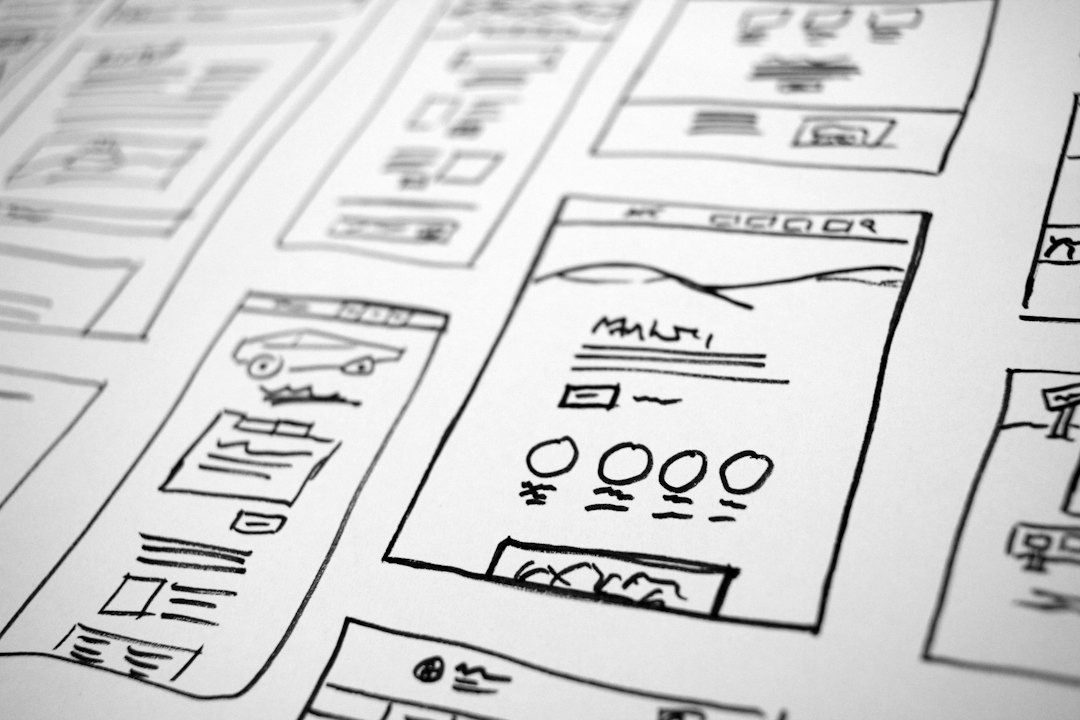
Canva: best for quick and cute
Canva is the friendly option. It is great for small businesses, creators, teachers, coaches, and anyone who wants a fun post without reading a manual.
You can start with a template. Add text. Add animated stickers. Click an animation style. Done. It feels playful. It feels fast. It is hard to mess up.
How to make a GIF-style Instagram post in Canva
- Open Canva.
- Choose an Instagram Post, Story, or Reel template.
- Add your photo, logo, product, or headline.
- Click Animate.
- Pick an effect like Pop, Rise, Breathe, or Pan.
- Add moving stickers, arrows, sparkles, or emojis.
- Set the timing to around 5 to 8 seconds.
- Download as MP4 Video for Instagram.
The GIF button may tempt you. Resist it for feed posts. Choose MP4. It will usually save you time.
What Canva does well
- Speed: You can make a post in minutes.
- Templates: There are tons of Instagram-ready designs.
- Stickers: The built-in animated graphics are fun.
- Easy resizing: You can switch from Story to post size fast.
- Beginner comfort: The tools are clear and friendly.
What Canva gets wrong
Expect to waste time on export choices if you are new. The GIF export looks right, but MP4 is often better for Instagram. That mistake can cost you an extra 30 seconds or more each time. Not a disaster. Still irritating.
Also, some animated elements can look a bit generic. You may spot the same glitter, arrow, or “new post” sticker in 20 other accounts. To avoid that, change colors. Use your own photos. Add your logo. Keep it yours.
Adobe Express: best for polished brand motion
Adobe Express is also easy. But it feels a little more grown-up. It works well if you already care about brand colors, fonts, clean layouts, and smooth social posts.
It is a strong choice for marketers, designers, agencies, and creators who want content that looks less “template party” and more “campaign ready.”
How to make a GIF-style Instagram post in Adobe Express
- Open Adobe Express.
- Choose an Instagram size.
- Pick a template or start blank.
- Add your image, logo, and text.
- Use animation options for text or objects.
- Add icons, shapes, or motion graphics.
- Preview the clip.
- Export as MP4.
The process is simple. The result often looks cleaner than a rushed Canva design. Text animation can feel smoother. Brand kits are also useful if you post often.
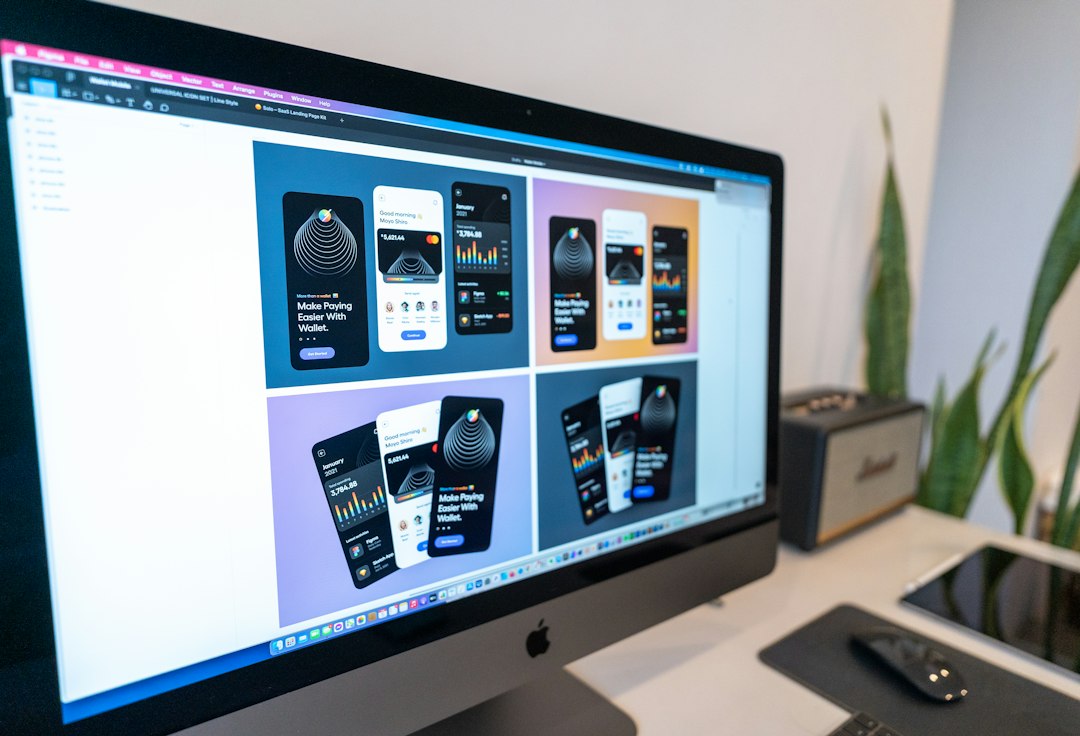
What Adobe Express does well
- Brand control: Fonts, colors, and logos stay consistent.
- Clean design: Templates often feel more polished.
- Adobe assets: You get access to strong creative tools.
- Good text motion: Great for promos, quotes, and launches.
- Pro feel: Nice for teams and client work.
What Adobe Express gets wrong
Some tools are tucked away in places that do not feel obvious at first. You may click around longer than expected to find the exact animation setting. It is not hard. It is just a little less bubbly than Canva.
The template library is strong, but Canva still feels faster when you want something silly, bright, or meme-like. Adobe Express wins when you want neat. Canva wins when you want fast and fun.
Canva vs. Adobe Express: the simple choice
Pick based on your goal.
- Need a quick Story sale graphic? Use Canva.
- Need a polished product launch post? Use Adobe Express.
- Need cute stickers and playful motion? Use Canva.
- Need steady brand style across 30 posts? Use Adobe Express.
- Need client-approved visuals? Adobe Express may feel safer.
- Need a post before your coffee gets cold? Canva wins.
Best Instagram sizes for animated content
Use the right size before you animate. This saves pain later.
- Instagram Story: 1080 x 1920 pixels.
- Instagram Reel: 1080 x 1920 pixels.
- Square post: 1080 x 1080 pixels.
- Portrait feed post: 1080 x 1350 pixels.
For most animated content, vertical is best. It fills the phone screen. It feels bold. It gives your text room to breathe.
How to add GIF stickers inside Instagram
If you do not want to make a full animated design, use Instagram’s built-in GIF stickers.
- Open Instagram.
- Create a Story or Reel.
- Tap the sticker icon.
- Choose GIF.
- Search for a word like sale, coffee, sparkle, or arrow.
- Tap a GIF to add it.
- Resize it with two fingers.
- Post it.
This is the fastest method. It is also the least custom. Your sticker may appear on many other posts. So use it as a small accent, not the whole idea.

Smart tips for better animated Instagram posts
- Keep it short. Aim for 4 to 8 seconds.
- Use one main motion. Too much movement feels messy.
- Make text huge. People watch on phones.
- Use contrast. White text on pale yellow is pain.
- Add a clear action. Try “Shop now,” “Save this,” or “DM us.”
- Loop smoothly. The end should feel natural when it repeats.
- Check sound off. Many people scroll in silence.
Which tool should you use?
Use Canva if you want speed, fun, and simple templates. It is the best pick for daily Stories, quick promos, birthday posts, flash sales, and casual updates.
Use Adobe Express if you want a more polished look. It is better for branded campaigns, launch graphics, client work, and posts that need to match a full visual style.
The best workflow is simple. Make the animated design in Canva or Adobe Express. Export it as MP4. Upload it to Instagram as a Story, Reel, or feed post. Add captions, tags, and a clear call to action.
That is it. No file format drama. No sad frozen GIF. Just bright little motion that makes people stop scrolling.