
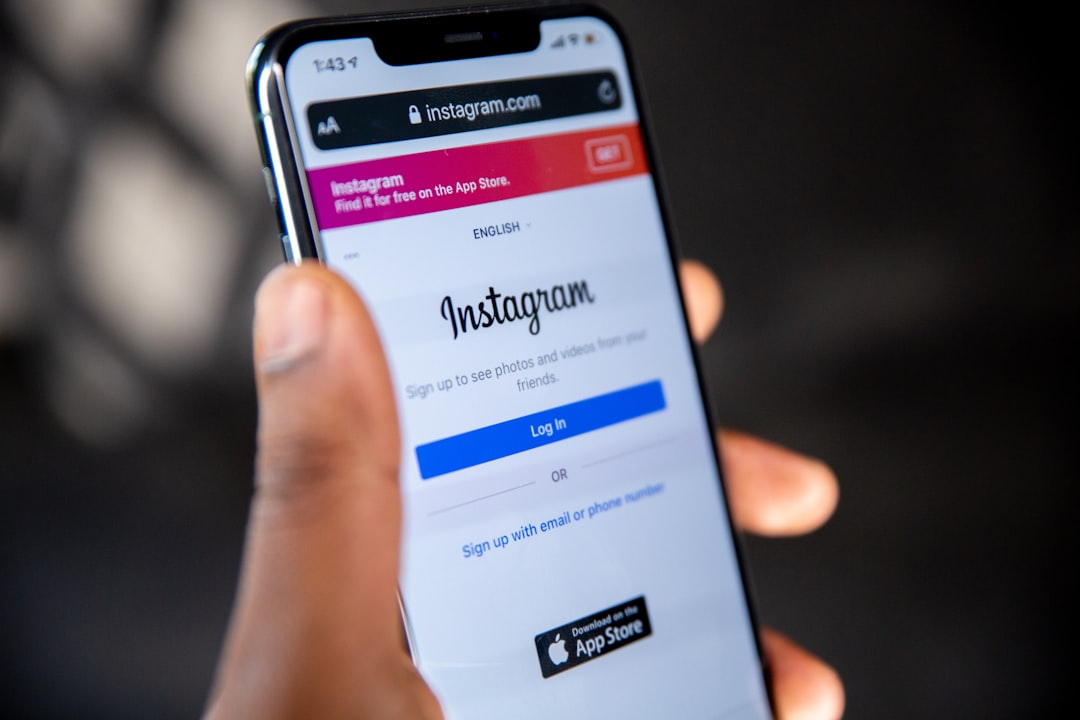
Instagram login issues on iOS devices can happen for many reasons, from a weak internet connection to outdated app files, incorrect credentials, temporary server problems, or Apple device settings that block normal sign-in behavior. When an iPhone or iPad user cannot access an account, the best approach is to move through simple checks first, then continue with more advanced fixes only if needed.
TLDR: Most Instagram login problems on iOS can be fixed by checking the internet connection, updating Instagram, restarting the device, and confirming the correct username, email, phone number, and password are being used. If the issue continues, users should clear app-related data by reinstalling Instagram, reset the password, check two-factor authentication, and review iOS settings such as date, time, VPN, and restrictions. If Instagram’s servers are down or the account has been temporarily locked, the user may need to wait or complete Instagram’s recovery steps.
Common Reasons Instagram Login Fails on iPhone or iPad
Before trying multiple fixes, it helps to understand why Instagram may refuse a login attempt. On iOS devices, login failures are often caused by a combination of app, network, account, and system-related issues. A user may see messages such as “Sorry, there was a problem with your request,” “Incorrect password,” “Please wait a few minutes before trying again,” or the app may simply freeze on the login screen.
Some of the most common causes include:
- Incorrect login details, such as an old password, mistyped email address, or changed username.
- Poor Wi-Fi or mobile data connection that prevents Instagram from contacting its servers.
- Outdated Instagram app or outdated iOS software.
- Corrupted app cache or temporary files stored by the Instagram app.
- Two-factor authentication problems, especially when codes are delayed or sent to an old phone number.
- VPN, proxy, or private relay conflicts that make login attempts look suspicious.
- Account restrictions, suspicious activity checks, or temporary locks applied by Instagram.
Start with the Basic Connection Checks
The first step is to confirm that the iOS device has a stable internet connection. Instagram requires a reliable connection during login, especially when loading security checks or sending verification codes. If the connection drops or becomes unstable, the app may display a misleading password or request error.
The user should try switching between Wi-Fi and mobile data. If Instagram works on mobile data but not Wi-Fi, the problem may be the router, DNS settings, or a restricted network. If it works on Wi-Fi but not mobile data, the mobile carrier connection may be weak or temporarily limited.
It may also help to open Safari and visit a few websites to confirm that the internet is working normally. If other apps are also slow or offline, the issue is likely not specific to Instagram.
Restart the Instagram App and the iOS Device
A simple restart can fix many temporary app problems. If Instagram is stuck on the login screen or fails after entering the password, the user should close the app completely and reopen it. On most modern iPhones, this means swiping up from the bottom of the screen, pausing in the app switcher, and swiping Instagram away.
If closing the app does not help, restarting the iPhone or iPad is the next logical step. A device restart clears temporary system glitches, refreshes network services, and can resolve small conflicts between iOS and the Instagram app. After the device turns back on, the user should open Instagram and try logging in again.
Confirm the Username, Email, Phone Number, and Password
Many login issues come from using the wrong sign-in information. Instagram accounts can be accessed with a username, email address, or phone number, but the information must match the account. If the user recently changed their username or email, older saved credentials may no longer work.
The user should carefully check for typing mistakes, extra spaces, incorrect capitalization in email addresses, or old passwords stored by iCloud Keychain. Although Instagram passwords are case-sensitive, usernames are not usually the main issue; still, entering the exact current username can help avoid confusion.
If there is any doubt, the best option is to tap “Forgot password?” or “Get help logging in” and follow the account recovery process. Instagram can send a login link or password reset option to the email address or phone number connected to the account.
Update Instagram from the App Store
An outdated version of Instagram may fail to log in because of bugs, expired features, or compatibility issues with Instagram’s servers. App updates often include fixes for login errors, performance issues, and security changes.
To update Instagram, the user should open the App Store, search for Instagram, and tap Update if the option appears. If the button says Open, the app is already up to date. It is also helpful to update other Meta-related apps, such as Facebook, if the Instagram account is linked to them.
Update iOS to the Latest Available Version
Instagram may not behave correctly on older iOS versions, especially if the app has been updated but the operating system has not. Updating iOS can improve security certificates, network behavior, app compatibility, and background services.
The user can check for updates by going to Settings > General > Software Update. If an update is available, the device should be backed up and charged before installation. After updating, the user should restart the device and try logging in again.
Reinstall Instagram to Clear App Data
Unlike some Android devices, iOS does not provide a simple built-in button to clear an individual app’s cache. However, deleting and reinstalling Instagram usually removes corrupted temporary files and refreshes the app installation.
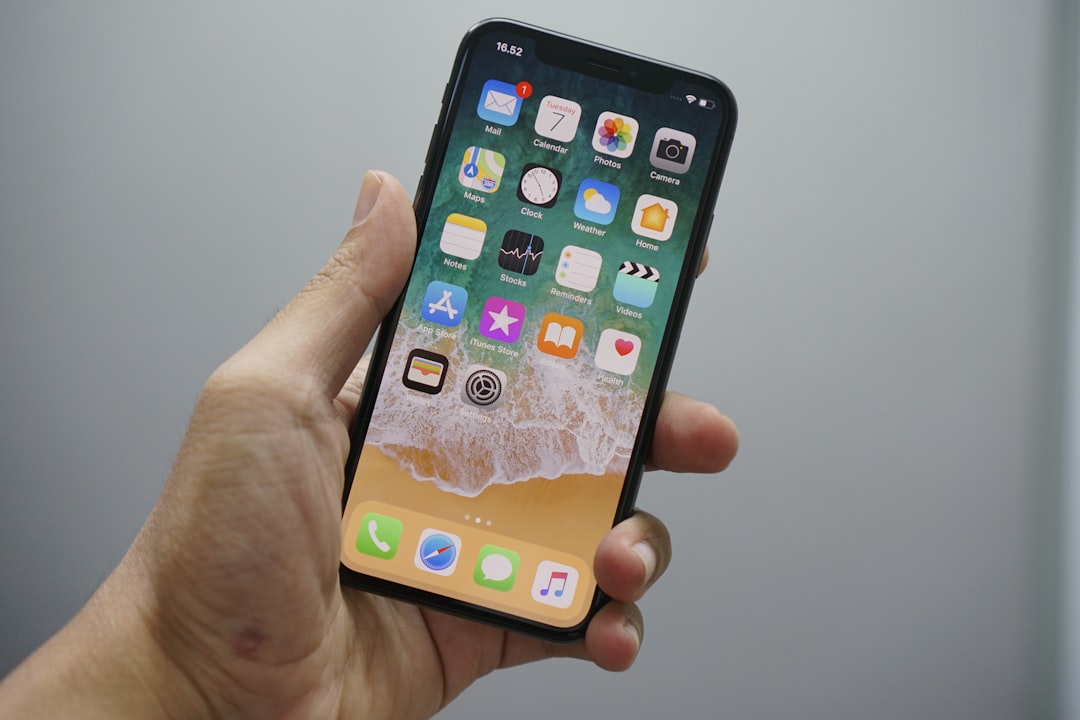
To reinstall Instagram, the user should press and hold the app icon, choose Remove App, then select Delete App. After that, Instagram can be downloaded again from the App Store. This process does not delete the Instagram account, photos, messages, or followers because that information is stored on Instagram’s servers.
Once the app is reinstalled, the user should enter their login details manually instead of relying immediately on saved passwords. This can help identify whether iCloud Keychain is filling in outdated information.
Check Two-Factor Authentication Problems
If two-factor authentication is enabled, Instagram may require a code from SMS, WhatsApp, an authentication app, or backup codes. Login may fail if the code is delayed, entered incorrectly, or sent to a phone number the user no longer uses.
The user should wait a few minutes before requesting another code, because repeated requests may trigger temporary limits. If an authentication app is used, the device time must be accurate because time-based codes depend on the correct clock. If backup codes were saved when two-factor authentication was set up, one of those codes may allow access.
If the account is also connected to Facebook through Accounts Center, the user may be able to verify identity or regain access through related Meta account recovery options.
Turn Off VPN, Proxy, or iCloud Private Relay Temporarily
Instagram may block or challenge login attempts that appear unusual. A VPN, proxy, or privacy routing feature can make a login appear to come from a different city, country, or network. This does not always cause problems, but it can trigger extra verification or temporary restrictions.
The user should temporarily disable any VPN app and try logging in again. If iCloud Private Relay is enabled, it can be turned off by going to Settings > Apple ID > iCloud > Private Relay, depending on the iOS version and iCloud plan. After testing the login, the feature can be turned back on if desired.
Check Date and Time Settings
Incorrect date and time settings can interfere with secure connections and authentication codes. Instagram uses encrypted communication, and security certificates may fail if the iPhone or iPad clock is far from the correct time.
The user should go to Settings > General > Date & Time and enable Set Automatically. Once the device shows the correct local time, Instagram should be reopened and tested again.
Look for Instagram Server Outages
Sometimes the problem is not on the iOS device at all. Instagram can experience outages that affect login, feed loading, messaging, or account verification. When this happens, many users may report the same problem at the same time.
The user can check whether Instagram is down by visiting status-checking websites, checking social media discussions, or asking another person to test their account on a different device. If Instagram’s servers are having problems, the only practical solution is to wait until service is restored.
Review Screen Time and Content Restrictions
iOS Screen Time settings can restrict apps, websites, or account changes. If Instagram is blocked, limited, or affected by content restrictions, login may not work properly. This is more common on shared family devices, managed school devices, or phones with parental controls.
The user should open Settings > Screen Time and check App Limits, Content & Privacy Restrictions, and Allowed Apps. If Instagram is limited, the restriction should be adjusted or removed by the person who manages the Screen Time passcode.
Try Logging In Through Safari or Another Device
Testing the account outside the Instagram app can help identify whether the issue is account-based or app-based. The user should open Safari on the iPhone and visit instagram.com, then attempt to log in there.
If the account works in Safari but not in the app, the problem likely involves the Instagram app installation, app permissions, or iOS app data. If the account does not work in Safari or on another device, the issue is more likely related to the password, account security, verification, or a restriction placed by Instagram.
Reset the Password and Secure the Account
If login continues to fail, resetting the password is often the most effective step. The user should choose a strong, unique password that has not been used on other websites. After resetting the password, all old sessions may be reviewed and suspicious devices should be removed if access is restored.
It is especially important to reset the password if the user receives emails about unfamiliar login attempts, account changes, or password reset requests they did not initiate. In that case, the issue may involve account compromise rather than a simple iOS login error.
When Instagram Temporarily Blocks Login Attempts
Instagram may temporarily limit login attempts if too many failed passwords, repeated code requests, or unusual network changes occur. In these cases, continuing to try repeatedly can make the lock last longer. The user should stop attempting to log in for a while, often several hours, and then try again from a familiar network and device.
If Instagram asks for identity confirmation, video selfie verification, email confirmation, or phone verification, the user should follow the official prompts inside the app or on Instagram’s website. Third-party services claiming to unlock Instagram accounts should be avoided because they may be scams.
Final Thoughts
Fixing Instagram login issues on iOS devices is usually a process of narrowing down the cause. The user should begin with internet, app, and device checks, then move toward account recovery, two-factor authentication, and security settings. In most cases, updating Instagram, reinstalling the app, resetting the password, or disabling network tools such as VPNs resolves the problem. If the issue comes from Instagram’s servers or an account restriction, patience and official recovery steps are the safest options.
FAQ
Why does Instagram keep saying the password is incorrect on an iPhone?
Instagram may show an incorrect password message if the password was changed, typed incorrectly, or filled in by an outdated saved password. The user should manually enter the password or use the password reset option.
Does deleting Instagram from an iPhone delete the account?
No. Deleting the Instagram app only removes the app from the device. The account, posts, followers, messages, and profile remain stored on Instagram’s servers.
Why is Instagram not sending a verification code?
Verification codes may be delayed because of mobile carrier issues, poor signal, email filtering, incorrect contact details, or too many recent code requests. The user should wait, check spam folders, confirm the phone number or email, and avoid requesting codes repeatedly.
Can a VPN cause Instagram login problems on iOS?
Yes. A VPN can make a login attempt look unusual, especially if the location changes suddenly. Turning off the VPN temporarily may help the user log in successfully.
What should a user do if Instagram says to try again later?
The user should stop repeated login attempts and wait for a while. This message often appears after too many failed attempts or suspicious activity. Trying again later from a familiar device and network usually helps.
Is it better to use Safari or the Instagram app to recover an account?
Both can work. If the app is failing, Safari can help determine whether the problem is with the app or the account. If login works in Safari, reinstalling or updating the app is recommended.
When should Instagram support be contacted?
Instagram support or official recovery prompts should be used when the account is locked, hacked, inaccessible due to two-factor authentication, or unable to receive recovery emails or codes after multiple careful attempts.