
LibreOffice Calc is usually safer for opening unknown CSV files, while Microsoft Excel is better when the CSV will become part of an Excel-based workflow. Excel can import text and CSV files and save sheets as CSV, but its default behavior can change dates, long numbers, and leading zeros if you are not careful [source: Microsoft].
TLDR: Use LibreOffice Calc when data accuracy matters most, especially for IDs, ZIP codes, SKU codes, and files with unusual separators. Use Excel when your team already works in Microsoft 365 or needs Power Query, charts, formulas, and reporting tools. For example, a 50,000-row export from a CRM with phone numbers and customer IDs is less risky in Calc because it asks about separators, encoding, and column type before import. In a small office where 80% of reports already end in .xlsx, Excel may still save more time overall.
Why CSV files cause trouble
A CSV file looks simple. It is just plain text with values separated by commas, semicolons, tabs, or another character. That simplicity is also the problem. A CSV file does not store formatting rules, data types, formulas, column widths, or locale settings.
So the app has to guess. That guess can be wrong.
- 001245 may become 1245.
- 03/04/2025 may become March 4 or April 3, depending on region settings.
- 123456789012345678 may turn into scientific notation.
- UTF-8 text may display broken accents if encoding is guessed badly.
It drives me crazy that a file can look fine at first glance, yet still have silent damage in key columns. That is the real risk with CSV editing.
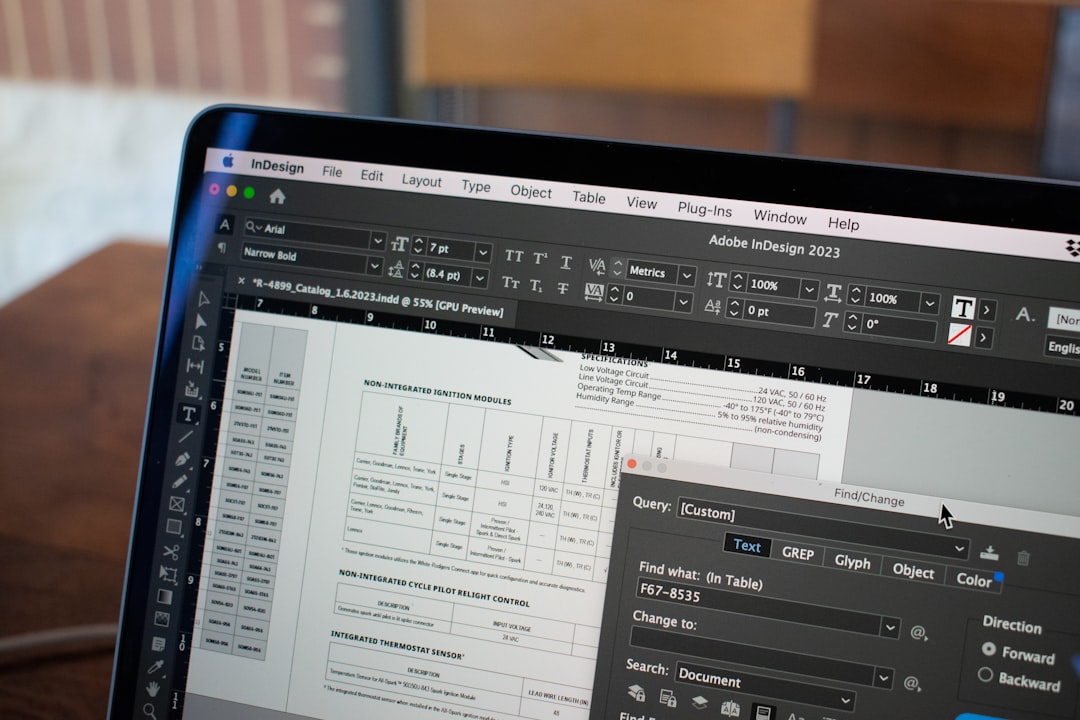
Microsoft Excel: strong workflow, risky defaults
Excel is the standard tool in many businesses. That matters. If your CSV file is part of a monthly finance report, a sales dashboard, or a shared Microsoft 365 process, Excel is often the practical choice.
Excel’s biggest strength is what happens after import. You get mature formulas, PivotTables, charts, Power Query, macros, and broad compatibility with business templates. For analysts, accountants, and operations teams, that can be enough to choose Excel.
But opening a CSV by double-clicking it is often a bad habit. Excel may apply automatic type detection right away. This can change values before you notice. Product codes, bank references, tracking numbers, and gene names are common victims.
Better Excel method:
- Open Excel first.
- Use Data > From Text/CSV.
- Check the delimiter.
- Set encoding, often UTF-8.
- Review column types before loading.
This takes longer. Maybe 20 to 40 seconds more for a small file. Still, that is cheaper than fixing 10,000 broken customer IDs later.
LibreOffice Calc: clearer control at import
LibreOffice Calc treats CSV import in a more cautious way. When you open a CSV, it usually shows a text import screen. You can choose encoding, language, separators, text delimiter, and column type before the sheet opens. That feels less polished than Excel, but it is safer.
This is especially useful for mixed data. A file from an ecommerce store may contain names, emails, prices, order numbers, postal codes, and dates. Calc lets you mark sensitive columns as Text. That helps preserve leading zeros and long numeric strings.
Calc also handles many regional CSV formats well. In parts of Europe, semicolons are common because commas are used in decimal numbers. Calc makes that easy to spot in the preview. LibreOffice also documents text import options in its help material [source: LibreOffice].
The downside is fit and finish. Large files may feel slower. Complex formatting after import is not as smooth as Excel. Collaboration can also be harder if everyone else uses Microsoft 365.

Editing and saving CSV files
Both apps can edit CSV data. Both can also create problems when saving.
A CSV file can usually save only one sheet. If your workbook has multiple sheets, formulas, colors, filters, or notes, those will not survive in the CSV output. The app may warn you. Do not ignore that warning.
Excel users should watch for accidental format loss. If the file must remain CSV, keep a separate .xlsx copy for working notes and formulas. Export a fresh CSV only when needed.
Calc users should pay attention to export settings. It may ask which delimiter, encoding, and quote style to use. That extra step can be annoying, but it also prevents bad exports.
Which one should you use?
Choose Microsoft Excel if:
- Your company already shares files in Excel.
- You need Power Query, PivotTables, charts, or macros.
- The CSV is only a starting point for a larger report.
- You can import through Data > From Text/CSV, not by double-clicking.
Choose LibreOffice Calc if:
- The CSV contains IDs, codes, long numbers, or leading zeros.
- You need strong control over encoding and delimiters.
- You receive CSV files from different systems or countries.
- You want a free desktop tool with careful import prompts.

Practical recommendation
For serious CSV handling, treat the file as data, not as a normal spreadsheet. Open it through an import tool. Check the preview. Set risky columns to Text. Save a backup before editing.
If accuracy is the top concern, start with LibreOffice Calc. It gives you more control before the damage can happen. If reporting and team workflow matter more, use Excel, but import the file properly. The best tool is the one that preserves the data first and saves time second.