
A user should run a screenshot test before changing any display setting or paying for repair. White horizontal lines often point to a screen panel, flex cable, or impact issue, but display settings can still mimic the problem. Apple lists visible lines, color distortion, and screen damage as reasons to inspect or service a device [source: Apple]. The fastest path is simple: test, isolate, then decide whether software or hardware is guilty.
TLDR: White horizontal lines that do not appear in screenshots usually mean a hardware display fault, not a bad setting. If the lines appear in screenshots viewed on another device, the issue may involve software, GPU rendering, accessibility filters, or an app bug. For example, a user who sees three steady white lines after a 2 foot drop should expect hardware checks first, while a user who sees lines only inside one video app should check settings and updates. A basic 5 minute test plan can prevent a needless $100 to $300 screen repair.
Why White Horizontal Lines Appear
White horizontal lines can show up as thin streaks, bright bands, flickering bars, or full-width flashes. They may stay fixed in one spot. They may move when the screen refreshes. Some appear only at high brightness. Others become worse when the phone bends slightly or warms up.
The cause usually falls into one of two groups:
- Display settings or software behavior: refresh rate bugs, color filters, accessibility options, app glitches, system updates, or graphics rendering faults.
- Hardware faults: damaged OLED or LCD layers, loose display connector, pressure damage, water exposure, battery swelling, or a cracked solder joint.
The catch is that both groups can look almost the same at first glance. A bad setting can create odd bands. A damaged panel can still respond to touch perfectly. That is why guessing wastes time.

The Screenshot Test: The Best First Filter
The screenshot test is the quickest split between settings and hardware. The user takes a screenshot while the white lines are visible, then sends that screenshot to another phone, laptop, or tablet.
- If the lines appear in the screenshot on another device: the issue is likely software, app rendering, or system display processing.
- If the lines do not appear in the screenshot: the issue is likely physical screen hardware.
This test works because screenshots capture what the system is drawing, not what the damaged glass or panel is showing. If the software drawing is clean but the phone screen is not, the panel path becomes the prime suspect.
There is one annoying exception. Some screen recording tools and screenshots fail to capture overlays, protected video, or system-level visual effects. Honestly, it feels like the phone is hiding the clue at the worst time. If doubt remains, the user should repeat the test in the home screen, settings app, camera app, and lock screen.
Display Settings That Can Create Line-Like Effects
Before booking repair, the user should check settings that affect contrast, refresh, color, and brightness. These settings do not usually create perfect permanent white lines, but they can cause flicker, banding, or bright strips that look close enough to confuse the diagnosis.
- Brightness and adaptive brightness: some displays flicker or band at very low brightness. Testing at 25%, 50%, and 100% helps.
- Refresh rate: switching from 120 Hz to 60 Hz can stop flickering lines caused by a refresh bug.
- Color filters: grayscale, color correction, inverted colors, or high contrast modes may exaggerate banding.
- Night mode or eye comfort mode: warmer tones can expose screen uniformity flaws.
- Screen resolution: on some Android models, changing resolution may fix odd scaling artifacts.
- Developer options: forced GPU rendering, hardware overlays, or animation settings can cause strange drawing behavior.
Samsung recommends Safe Mode for testing whether third-party apps are causing display or performance problems [source: Samsung]. Safe Mode is useful because it loads the phone with fewer outside variables. If the lines vanish there, an app, launcher, keyboard, filter tool, or display overlay may be involved.
Hardware Signs That Should Not Be Ignored
Hardware lines tend to have a few familiar traits. They stay in the same place. They appear during startup. They show on the logo screen. They get worse after drops, pressure, or moisture. They may change when the phone is twisted gently, which is a bad sign.
Common hardware causes include:
- Damaged OLED panel: white, green, pink, or black lines can appear after impact.
- LCD layer fault: pressure can damage the liquid crystal layer and create bright horizontal bands.
- Loose flex cable: the display connector may shift after a drop or prior repair.
- Water damage: corrosion can affect the display circuit even days later.
- Battery swelling: pressure from inside the phone can push against the screen.
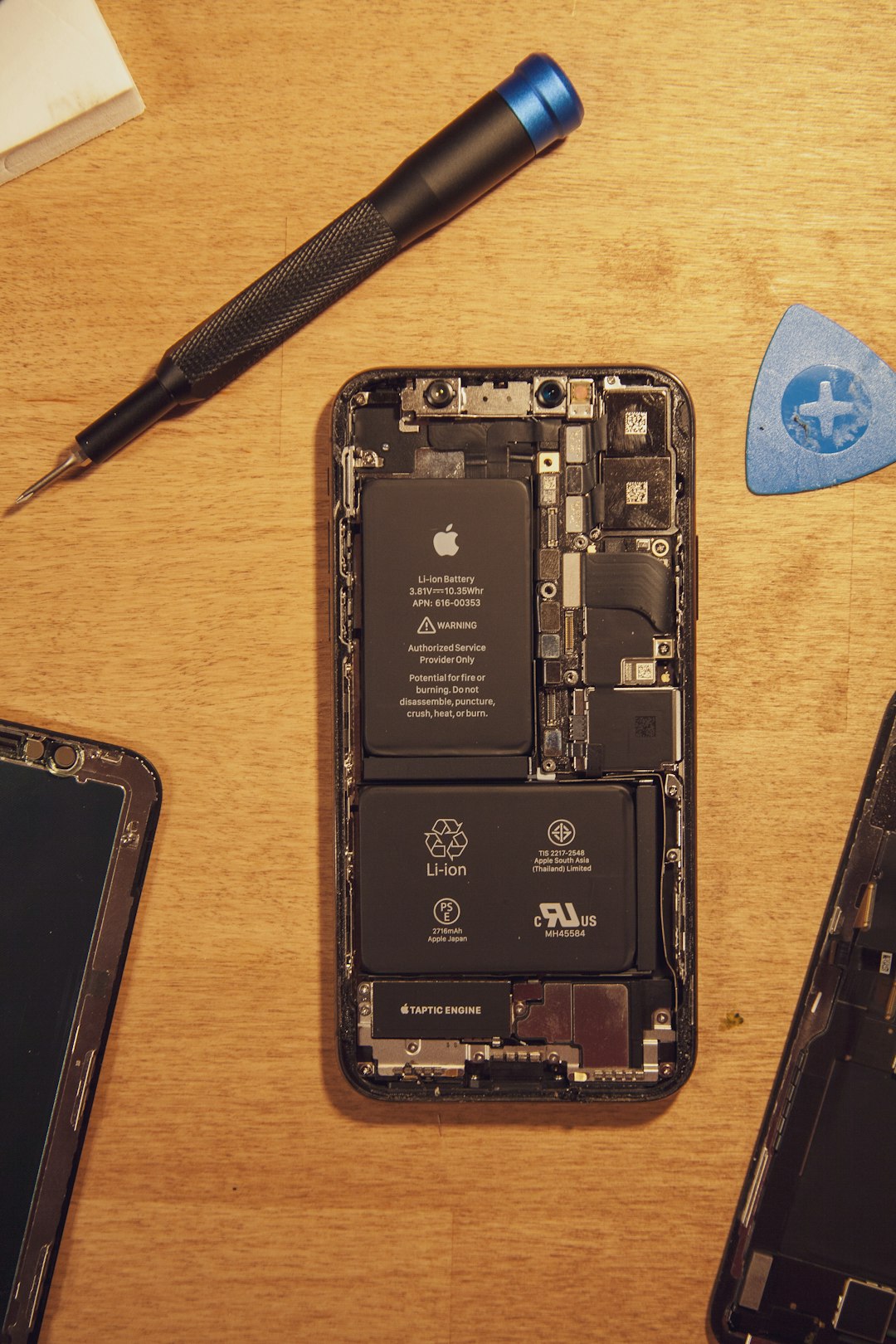
A swollen battery is urgent. If the screen is lifting, the back cover is separating, or the phone rocks on a flat table, the user should stop pressing the screen and seek service. Heat and pressure make the issue riskier.
Fast Diagnostic Checklist
The user should follow this order. It keeps the simple checks at the top and avoids wiping the phone too early.
- Clean the screen and remove the case: pressure from a tight case can worsen display stress.
- Take a screenshot: view it on another device.
- Restart the phone: a full restart clears temporary graphics bugs.
- Boot into Safe Mode: check whether third-party apps are involved.
- Change brightness and refresh rate: test several levels for flicker patterns.
- Disable color and accessibility filters: restore normal color display.
- Check the startup logo: lines on the boot logo often mean hardware.
- Back up data: do this before repair, reset, or battery inspection.
- Run built-in diagnostics: some brands include screen tests in support apps or service menus.
When a Factory Reset Makes Sense
A factory reset should be near the end of the software path, not the first step. It erases local data and takes time to restore. Expect to waste time on logins, banking apps, two-factor prompts, and photo sync if backups are not current.
A reset makes sense when the screenshot shows lines, Safe Mode does not help, updates are current, and the issue started after a major system change. If the lines do not appear in screenshots and remain visible on the boot logo, a reset usually will not fix the panel.
Repair or Replace?
Repair is likely if the phone is recent, the battery is healthy, and the rest of the device works well. Replacement may be smarter when the phone is older, has water damage, or needs both a screen and battery. A shop should inspect for frame bend before installing a new display. A bent frame can crack a replacement screen or create pressure lines again.
For warranty claims, the user should document the issue with photos from another device. A clear image of the lines on the lock screen, home screen, and boot logo helps. If the phone was dropped, the warranty outcome may depend on the device plan and damage policy.
FAQ
Can display settings cause white horizontal lines?
Yes, but usually as flicker, banding, or temporary artifacts. Sharp, fixed white lines often point to hardware.
Why do the lines not show in screenshots?
Screenshots capture the system image, not the physical panel. If another device shows a clean screenshot, the phone screen or display connection is likely faulty.
Can a software update fix white lines?
Sometimes. If the lines appeared after an update and show in screenshots, a patch may help. If the lines show during startup, hardware is more likely.
Is it safe to keep using the phone?
Usually, yes, unless the phone is overheating, swelling, cracked, or wet. Battery swelling needs quick service.
Does tapping or pressing the screen help?
It may change the lines for a moment, but it can make panel damage worse. Pressure is not a real fix.
What is the best first step?
The best first step is the screenshot test, followed by a restart and Safe Mode check. Those steps separate display settings from hardware faults fast.