
Use iOS troubleshooting tools first, then switch to the Apple Support app if the speaker button stays grayed out after basic tests. A grayed-out iPhone Speaker button during calls usually points to an audio routing problem, a stuck Bluetooth or CarPlay handoff, an iOS glitch, or hardware trouble in the receiver, microphone, or audio circuit. Apple’s own guidance for speaker problems starts with simple checks such as volume, Silent mode, cleaning the receiver, restarting, and contacting support if sound still fails [source: Apple]. That order makes sense because you can rule out common software issues in minutes before booking service.
TLDR: Start with built-in iOS checks because they are faster and often fix routing issues without a repair visit. For example, if an iPhone is still routing calls to a car system or earbuds, turning off Bluetooth can make the Speaker button active again in under 60 seconds. If three quick tests fail — restart, Bluetooth off, and Voice Memos recording — use the Apple Support app to run the official support path and arrange service. A practical rule: spend 10 to 15 minutes on iOS tools, then stop guessing.
What “Speaker Grayed Out” Usually Means
When the Speaker button is grayed out, the iPhone is not giving you a usable speakerphone option during the call. It is different from low volume. It is different from muffled sound. The control itself is unavailable, which is why it feels so irritating.
The issue can come from several places:
- Bluetooth routing: The phone may think earbuds, a speaker, or a car system should handle call audio.
- CarPlay or AirPlay confusion: Audio can remain assigned to another output after disconnecting.
- iOS call service glitch: A temporary software fault can disable the audio route.
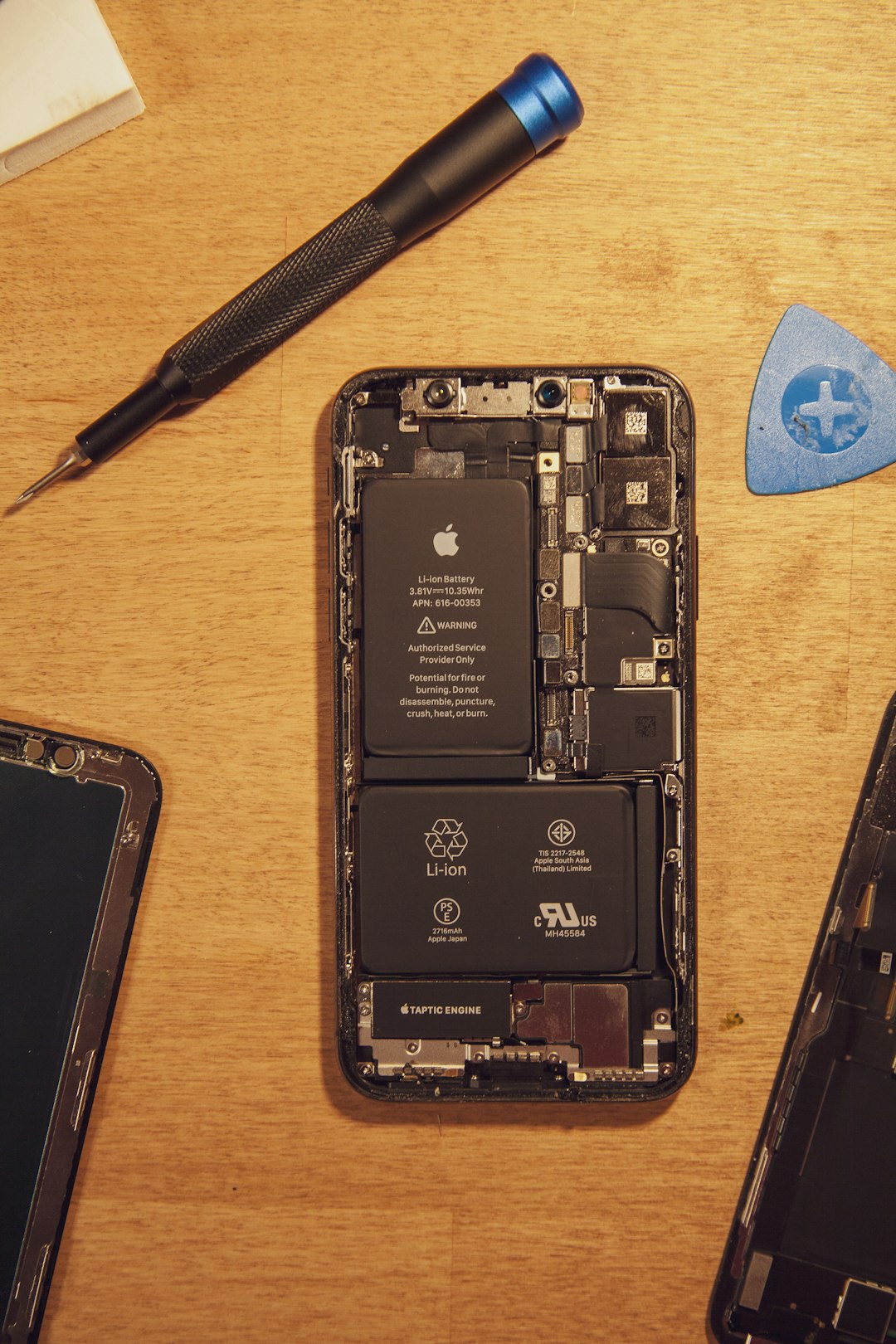
- Microphone or receiver fault: If iPhone cannot access call audio hardware, speakerphone may be blocked.
- Board-level hardware issue: Older or damaged phones can suffer from deeper audio circuit failure.
Honestly, it feels like one of those problems that should have a clear error message. Instead, iOS often just gives you a dead gray button and expects you to guess.
Apple Support App: Best for Official Diagnosis and Repair
The Apple Support app is not just a help article reader. It connects your device, Apple ID, warranty status, service options, chat, phone support, and repair appointments in one place. If the issue is hardware, this is the cleaner route.
Use the Apple Support app when:
- The Speaker button stays grayed out after a restart.
- Voice Memos cannot record properly.
- People cannot hear you during calls.
- The issue began after a drop, liquid exposure, or repair.
- The same problem appears on cellular calls, FaceTime, WhatsApp, and other call apps.
The app may guide you through checks before it offers service. It can also help you contact Apple or an authorized provider. That matters because unauthorized audio repairs can create more problems, especially on newer iPhones with paired components and tight seals.
The downside: the flow can feel slow. Expect to tap through device selection, issue categories, suggested articles, and contact choices. It may take 2 or 3 minutes just to reach the part you wanted. That is annoying if all you need is a quick Bluetooth check.
iOS Troubleshooting Tools: Best for Fast Isolation
iOS tools are better for the first pass because they are already on the phone. No appointment. No chat queue. No account handoff. You can test the most common causes quickly.
Start with these checks in order:
- Turn Bluetooth off: Open Control Center and disable Bluetooth. Do not just disconnect one device. Turn it off fully for the test.
- Check the audio route: During a call, tap the audio button if available and see whether iPhone, Speaker, AirPods, or a car system appears.
- Restart the iPhone: A full restart can reset the call audio service.
- Test Voice Memos: Open Voice Memos and record for 10 seconds. If there is no waveform or playback is silent, suspect microphone or audio hardware trouble.
- Test video audio: Record a short video with the front and rear cameras. Play both back. This checks different microphones.
- Check Call Audio Routing: Go to Settings > Accessibility > Touch > Call Audio Routing. Set it to Automatic or test Speaker.
- Update iOS: Go to Settings > General > Software Update. Install pending updates if your battery is charged and backed up.
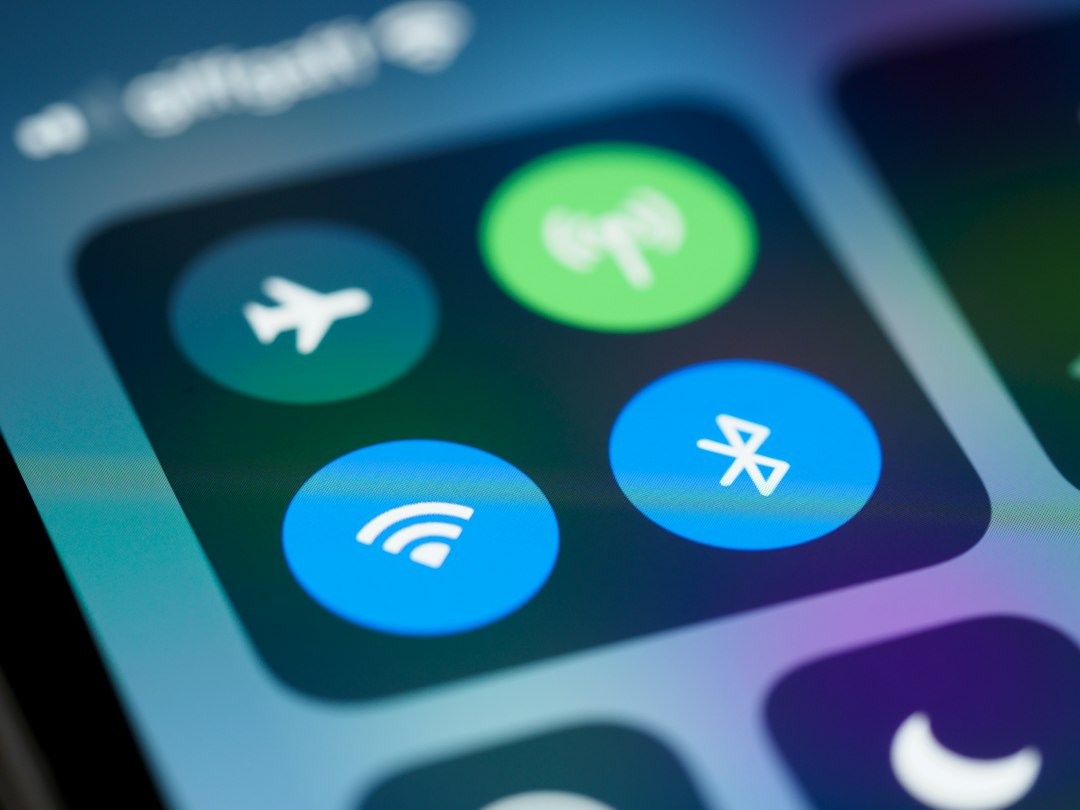
If the Speaker button works after Bluetooth is turned off, the phone is probably fine. Your issue is routing. Remove the old pairing under Settings > Bluetooth, then reconnect only the devices you still use.
If the button stays gray across normal calls, FaceTime, and third-party apps, the problem is more serious. At that point, repeated setting changes become busywork.
Which Is Better: Apple Support App or iOS Tools?
The answer depends on the symptom pattern.
| Situation | Better Option | Why |
|---|---|---|
| Speaker button grayed out only after using car audio | iOS tools | Likely routing or Bluetooth confusion |
| No microphone input in Voice Memos | Apple Support app | Possible hardware fault |
| Issue started after iOS update | iOS tools first | Restart, update, or reset settings may help |
| Issue started after drop or liquid exposure | Apple Support app | Repair assessment is safer |
| Speaker works in music but not calls | Both | Could be call routing, microphone, or receiver logic |
The iOS tools win on speed. The Apple Support app wins on accountability. If your phone needs repair, Apple Support gives you a traceable path, official options, and fewer guesses.
When Resetting Settings Makes Sense
If the fast checks fail but hardware tests still look normal, try Reset All Settings. This does not erase your photos, apps, or messages, but it does reset Wi-Fi networks, privacy permissions, keyboards, location settings, and Apple Pay preferences.
Go to Settings > General > Transfer or Reset iPhone > Reset > Reset All Settings.
Do this only after simpler steps. It drives me crazy that this option is often suggested too early. Rebuilding Wi-Fi, notification, and privacy settings can take longer than the original problem.
Warning Signs That Point to Hardware
Stop troubleshooting and use the Apple Support app if you see two or more of these signs:
- The Speaker button is always gray during calls.
- Voice Memos will not record.
- Siri does not hear you.
- Calls fail or freeze when audio starts.
- The phone was recently dropped.
- There is crackling, popping, or no sound from multiple apps.
- The issue remains after updating iOS and resetting settings.
Do not keep blowing air into the speaker grille or poking it with metal tools. You can damage mesh, seals, or internal parts. Use a clean, dry, soft brush if there is visible debris. Avoid liquids.
Best Practical Workflow
Use this order:
- Restart the iPhone.
- Turn Bluetooth off completely.
- Test Voice Memos and video recording.
- Check Call Audio Routing.
- Install any iOS update.
- Reset All Settings only if audio hardware still seems normal.
- Open the Apple Support app if the button remains gray.
This keeps the process clean. It also prevents wasted repairs for a Bluetooth issue, while still getting you to official support when the phone shows real hardware symptoms.
Final call: for a grayed-out iPhone Speaker button, iOS troubleshooting tools are the right first move. They are faster and better for ruling out routing bugs. The Apple Support app is the better second move when basic tests fail, especially if microphones, calls, and recordings are all affected.